Product Hints, Gift Messages and Auto-Add
The extension provides 3 main ways to manipulate the gift functionality – the product hints, the gift messages and the auto-add.
Product Hints
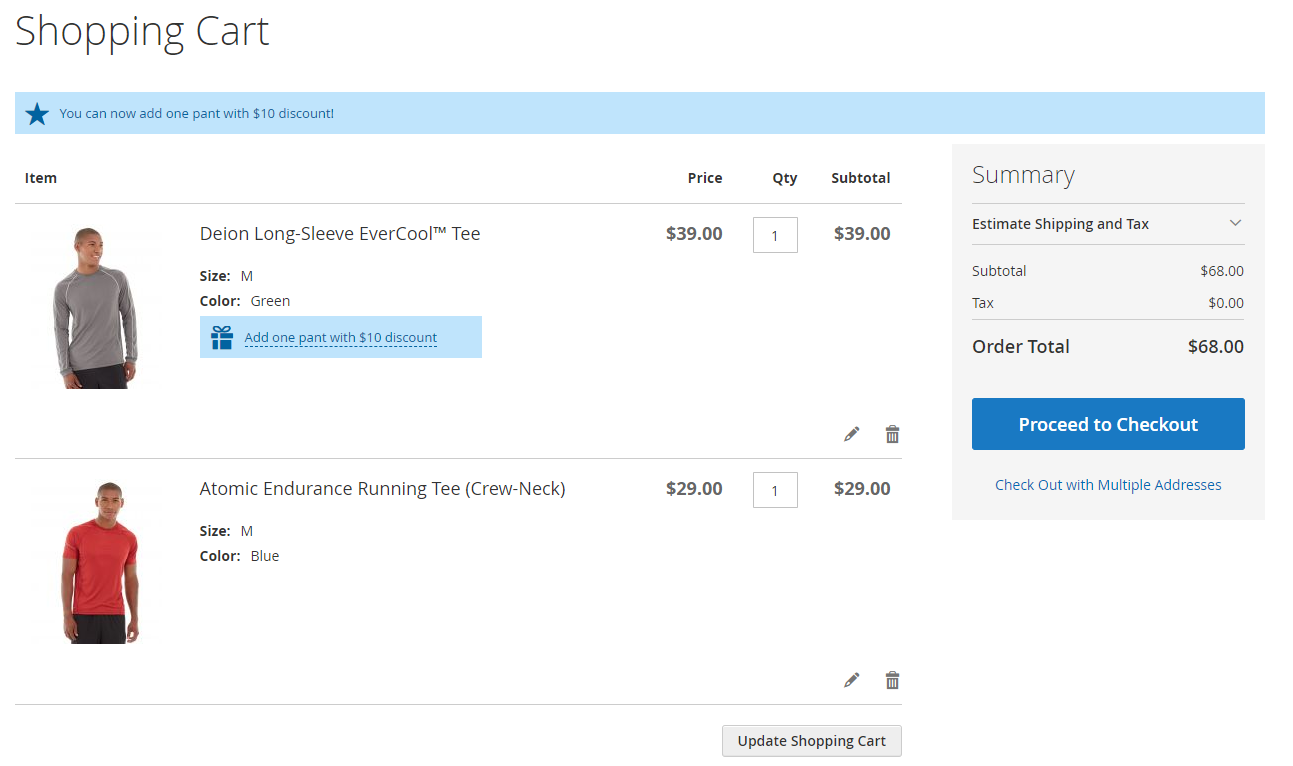
The product hint is the blue message with a gift icon that informs the customer about the free gift / discounted product that they can get now. If the customer clicks this message, they get a popup that contains the products that they can select as a gift / at a discounted price.
How to enable the product hints
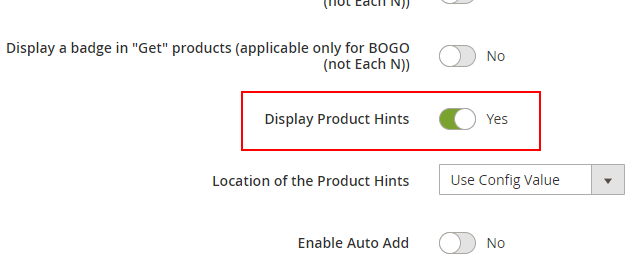
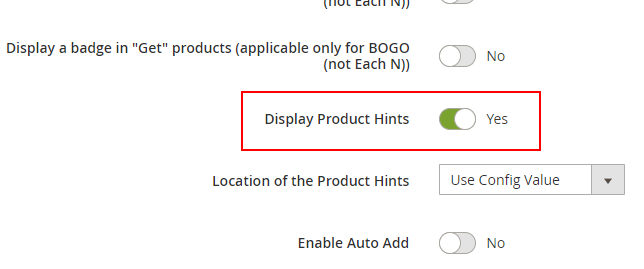
To enable the product hints, set the field “Display Product Hints” to “Yes” in the cart rule.
How the product hints are constructed
The product hints are constructed using the words that you filled in the hint fields ([label for cart hints – singular / plural]). In the following example image we filled the hint fields with the words bag and bags.
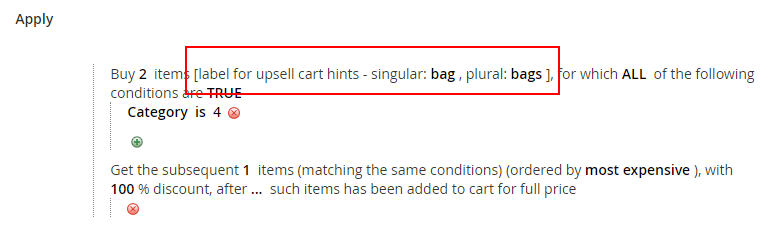
If you don’t fill these, the product hints won’t show up.
Location of the product hint
For the actions “Get free or discounted product(s) for each $X spent”, “BOGO” and “Each N” you can configure the product hints to be either next to the triggering item (ie next to the product that triggered the discount), or at the top of the cart. For the action “Get free or discounted product(s)” you can only display the product hint at the top of the cart.
To change the product hints location, change the value of the “Location of the Product Hints” -

- Use Config Value – inherits the value from Stores --> Configuration --> Sales --> Mexbs Additional Promotions --> Product Hints --> Product Hint Location
- Triggering Item Line – displays the product hints next to the item that triggered the promotion. See Example #2.
- Top of the Cart – displays the product hints at the top of the cart. See Example #1.
Example #1
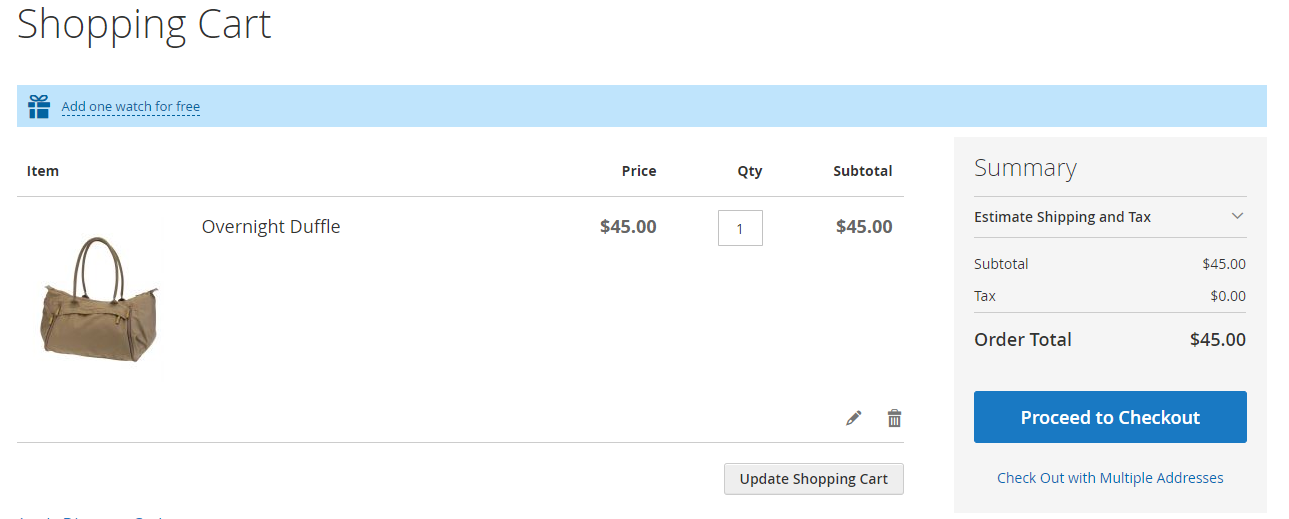
The cart rule is “Buy a bag, get a watch for free”. The customer added a bag to their cart. There is a product hint message at the top of the cart – “Add one watch for free”
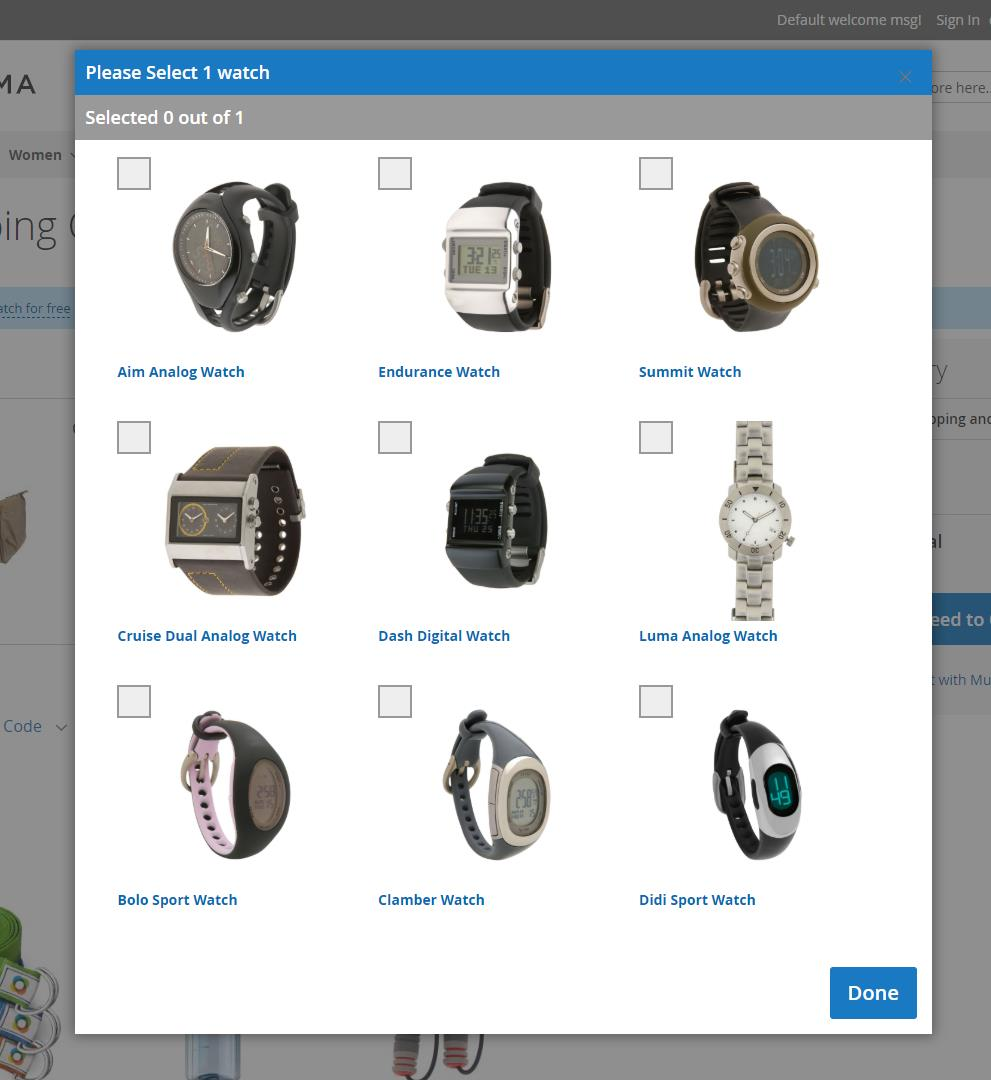
When the customer clicks the product hint, they get a popup that allows them to select a watch –
Example #2
The cart rule is “Buy 2 t-shirts, get pants with $10 discount”. The customer adds 2 t-shirts to the cart. There is a product hint message next to one of the t-shirts – “You can now add one pant with $10 discount” -
Gift Messages
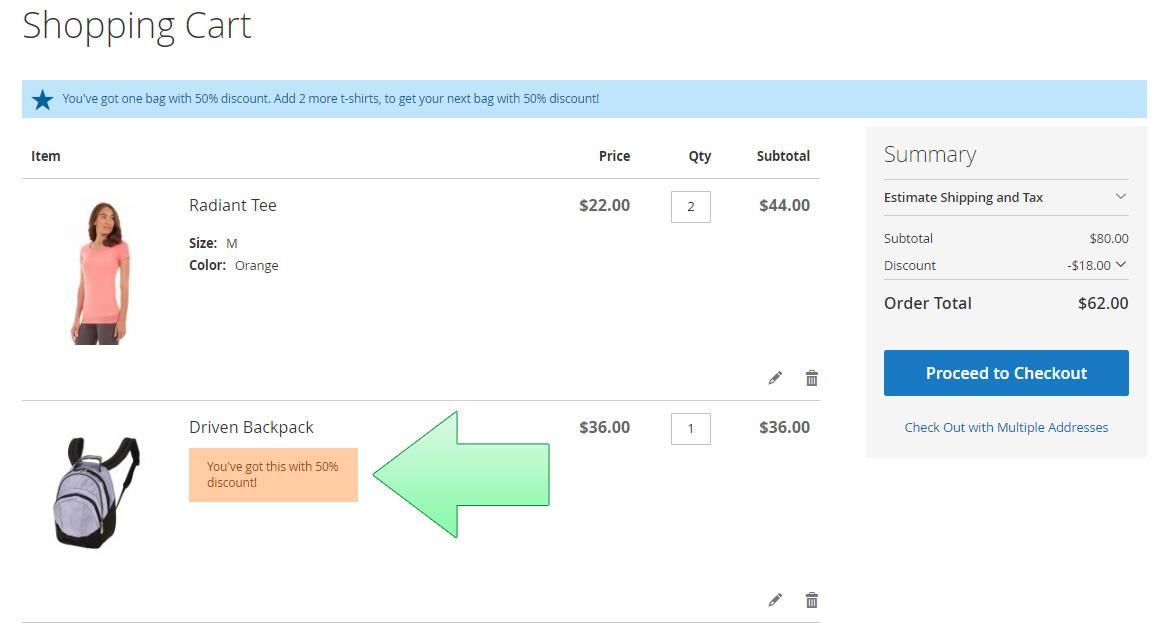
The gift messages are the orange messages that are displayed next to the free / discounted products.
How to enable the gift messages
In order to enable the gift messages, you need to enable the product hints by setting the field “Display Product Hints” to “Yes” in the cart rule -
Example
The cart rule is “Buy 2 t-shirts, get a bag with 50% discount!”. The customer has 2 t-shirts and a bag in their cart. There is a gift message next to the bag saying “You’ve got this with 50% discount!” -
Auto-Add
The auto-add functionality auto-adds the free product if the customer’s cart fulfills the rule’s conditions. If later on, the customer changes their cart in such a way that the conditions don’t match anymore – the previously auto-added product will get removed by the extension.
The auto-add only works if there is only one “Get” product that matches the conditions. If there is more than one matching product, the extension doesn’t know which one to auto-add. The auto-add also requires that the “Get” product has a 100% discount.
How to enable the auto-add
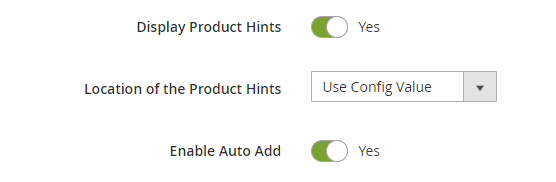
In order to enable the auto-add you need to turn on the “Enable Auto-Add” switch. The switch won’t show up unless the “Display Product Hints” switch is on.
Examples of rules where the auto-add works, and where it doesn’t
- Example #1: The rule is “Buy two t-shirts, get one pair of pants for free”. Unless we have only one pair of pants in the whole shop – the auto-add won’t work here.
- Example #2: The rule is “Buy two t-shirts, get one Adidas Black XL pair of pants for free”. Since the “Get” product matches only one product in our shop and the discount is 100% - the auto-add will work.
- Example #3: The rule is “Buy two t-shirts, get one Adidas Black XL pair of pants for $1”. Although the “Get” product matches only one product in our shop, the auto-add won’t work because the discount is not a 100% discount.