Getting Started
Before explaining the promotion configurations and the features of the extension in detail (we will get to it soon), let’s create a simple promotion together (Buy 2 t-shirts, get a bag with 50% discount!), just to get the basic “feeling” of how the extension works.
Sample promotion #1: Buy 2 t-shirts, get a bag with 50% discount!
In this tutorial we will create a cart rule “Buy 2 t-shirts, get a bag with 50% discount!”, that is, when the customer adds 2 t-shirts to the cart, they get a message telling them that they can add a bag with 50% discount. They can then click the message and select the discounted bag.
Step 1: creating the rule
- Go to the Admin panel --> Marketing --> Cart Price Rules, and click “Add New Rule”.
- In the Rule Information tab, insert the following:
- Rule name: Buy 2 t-shirts, get a bag with 50% discount!
- Active: Yes
- Websites: The websites which you want your promotion to be active in.
- Customer Groups: The customer groups which you want your promotion to be active for.
- Coupon: No Coupon
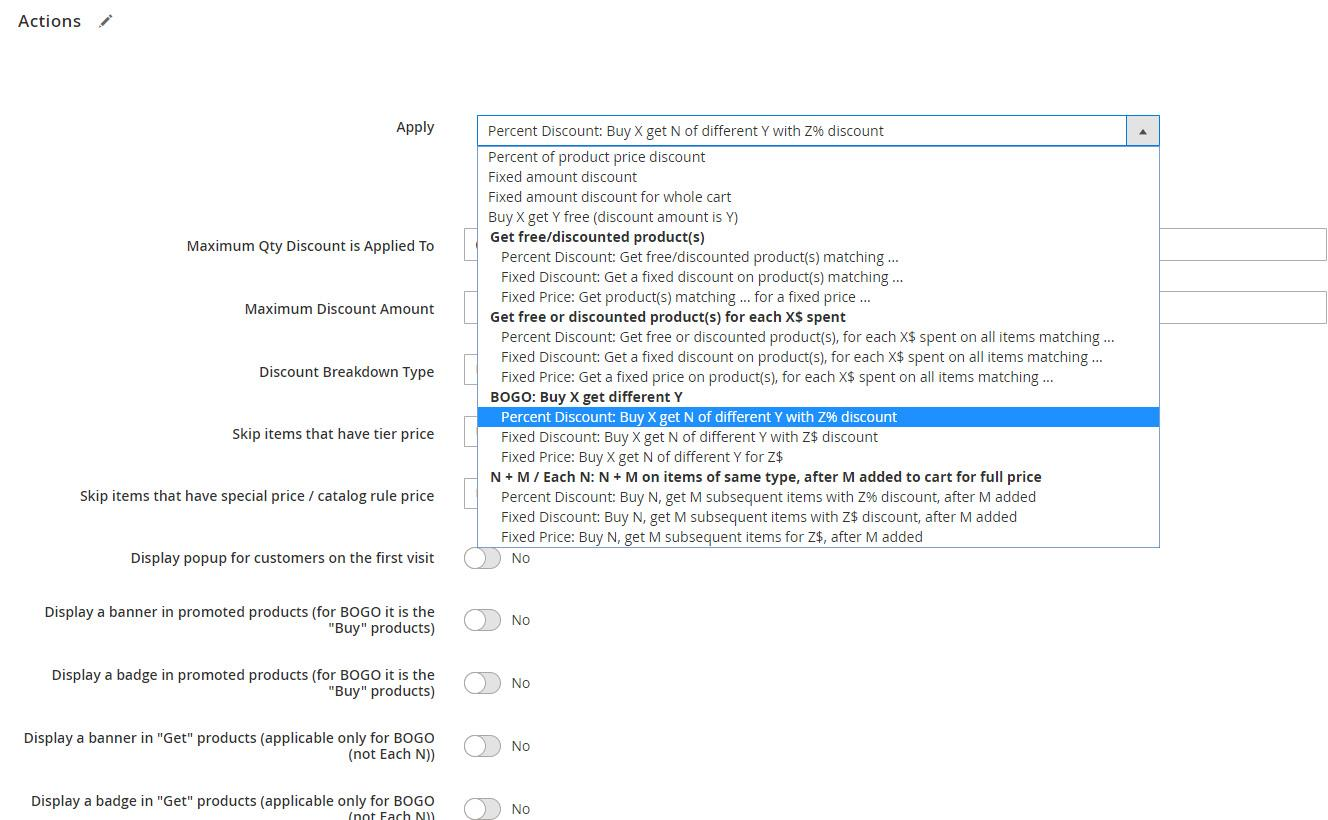
- In the Actions tab, in the Apply drop down, choose “Percent Discount”, under “BOGO: buy X get different Y”, and wait until the “Please wait” message disappears -
- After the loading is finished, you should see the following –
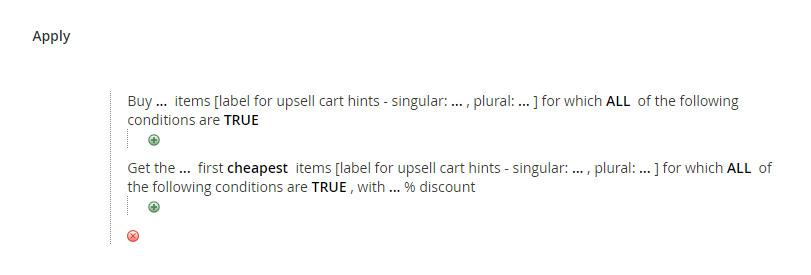
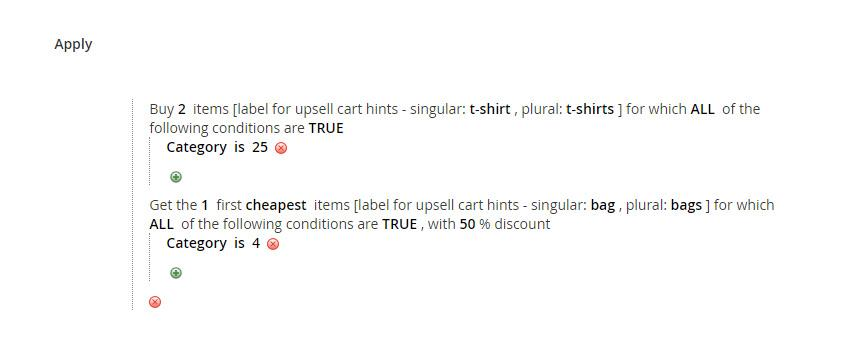
Fill in the data like the following –
Explanation:
- Since the promotion is “Buy 2 t-shirts, get a bag with 50% discount”, we filled Category 25 (in our system it is the category of t-shirts) in the “Buy” part, and Category 4 (in our system it is the category of bags) in the “Get” part.
- We want the upsell cart hints and the product hints to use the words “t-shirt”, “t-shirts”, “bag” and “bags” when constructing the hint, as those are the products that the promotion is applied to. This is why we fill “t-shirt”, “t-shirts”, “bag” and “bags” in the “[label for upsell cart hints..]” part. (See Upsell Cart Hints for more details.)
- Since we want the “Get” item (a bag) to get 50% discount, we fill in “with 50% discount”.
The label fields are not mandatory – if you don’t fill them, the promotion will still work, but the cart hints, product hints and the gift messages won’t get displayed.
- In the following “Action” fields, set the following values -
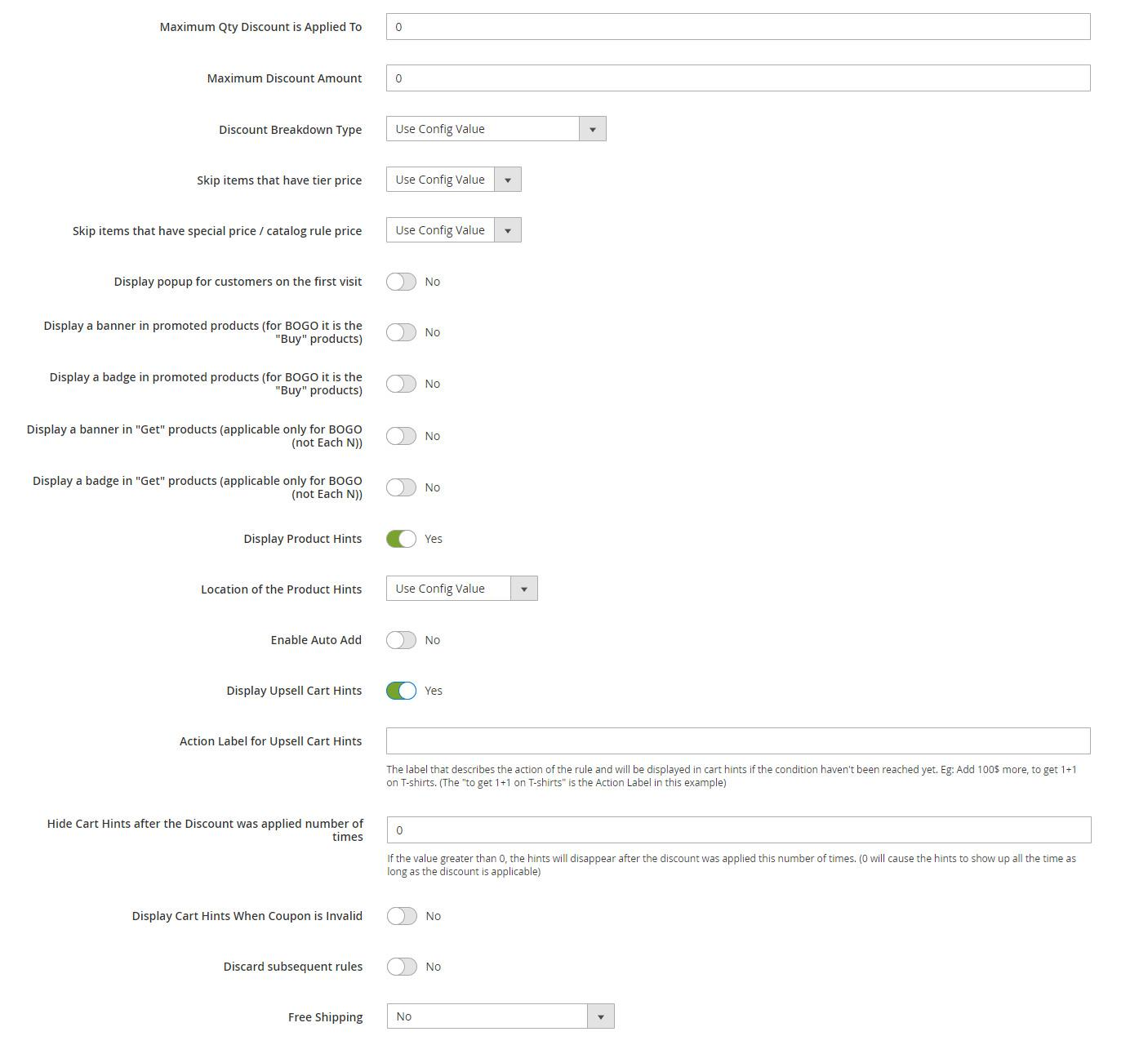
We left all the fields except “Display Upsell Cart Hints” and “Display Product Hints” untouched.
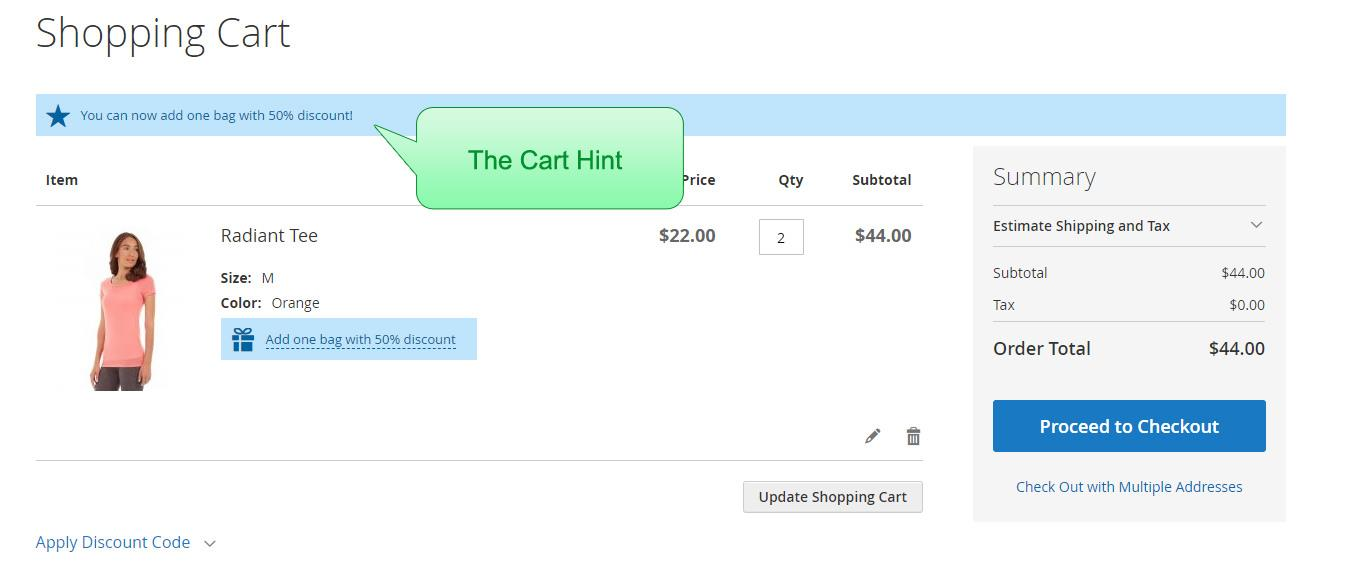
We set “Display Product Hints” to yes, because we want the product hints (and the gift messages) to show up in the cart -
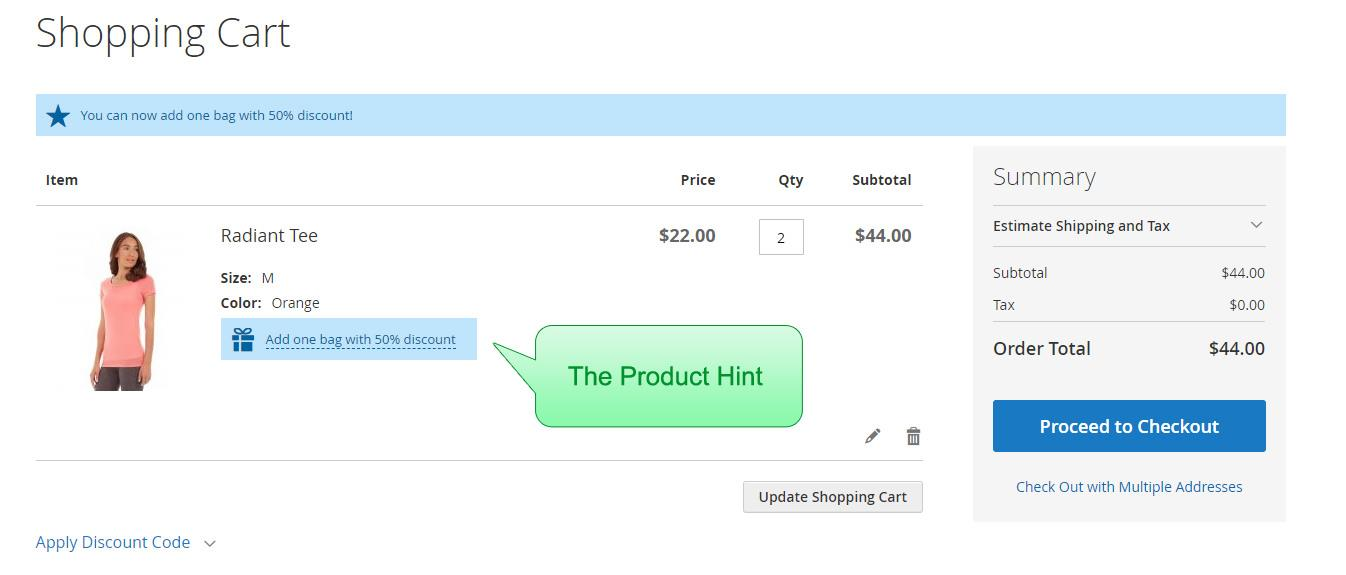
We set “Display Upsell Cart Hints” to “Yes”, because we want the upsell cart hints to show up in the cart –
- Save the rule by clicking the “Save” button.
- Wait until the re-index process runs. That is, wait until the message “One or more indexers are invalid. Make sure your Magento cron job is running.” at the top of the page disappears.
This should happen within 5 minutes if you have a cron set up on your server. If you need help to set up the cron on your server – please contact us at [email protected] and we will be happy to assist you for free!
Another option is to re-index manually through SSH, by running the following command:
php bin/magento indexer:reindex apactionrule_rule apactionrule_product
Step 2: testing the rule
- Go to the front end of your site and add one t-shirt to cart.
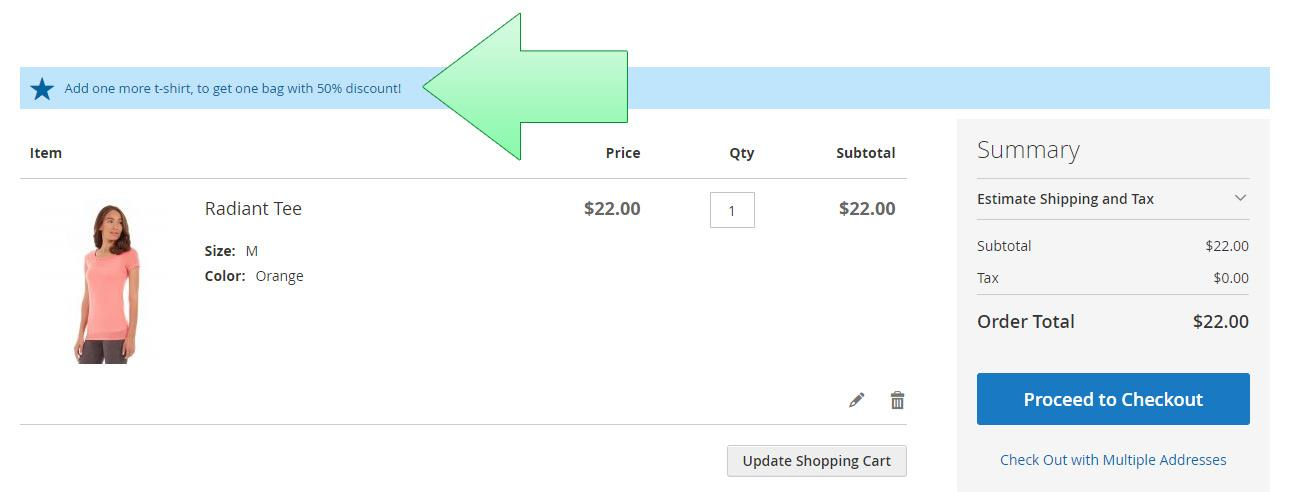
- Go to the cart page. You should get an upsell cart hint “Add one more t-shirt, to get one bag with 50% discount!” –
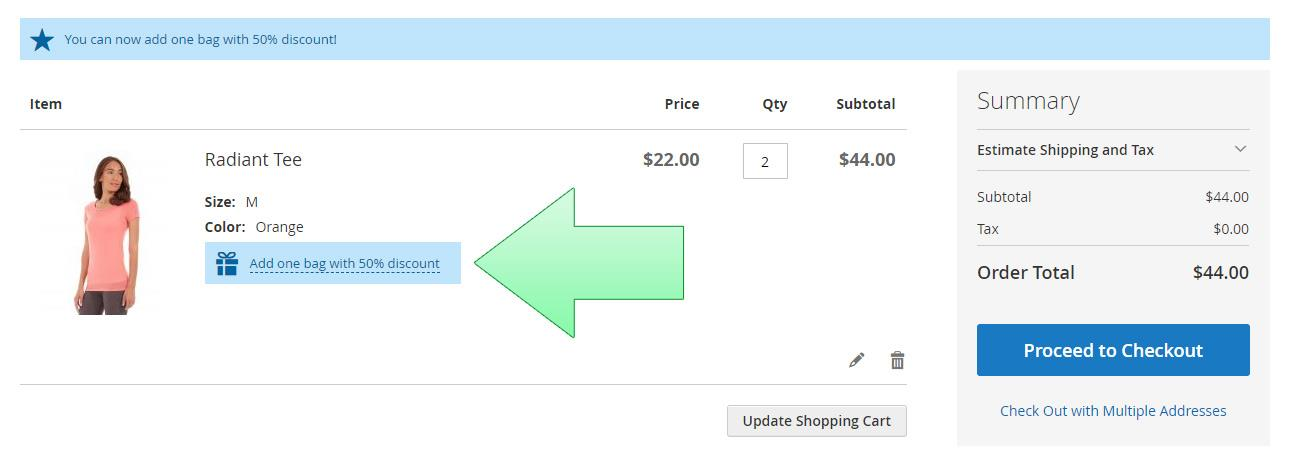
- Add another t-shirt to the cart, and you will get the product hint that says “Add one bag with 50% discount” –
- Click on the product hint. You should get a popup that lets you select the discounted bag –
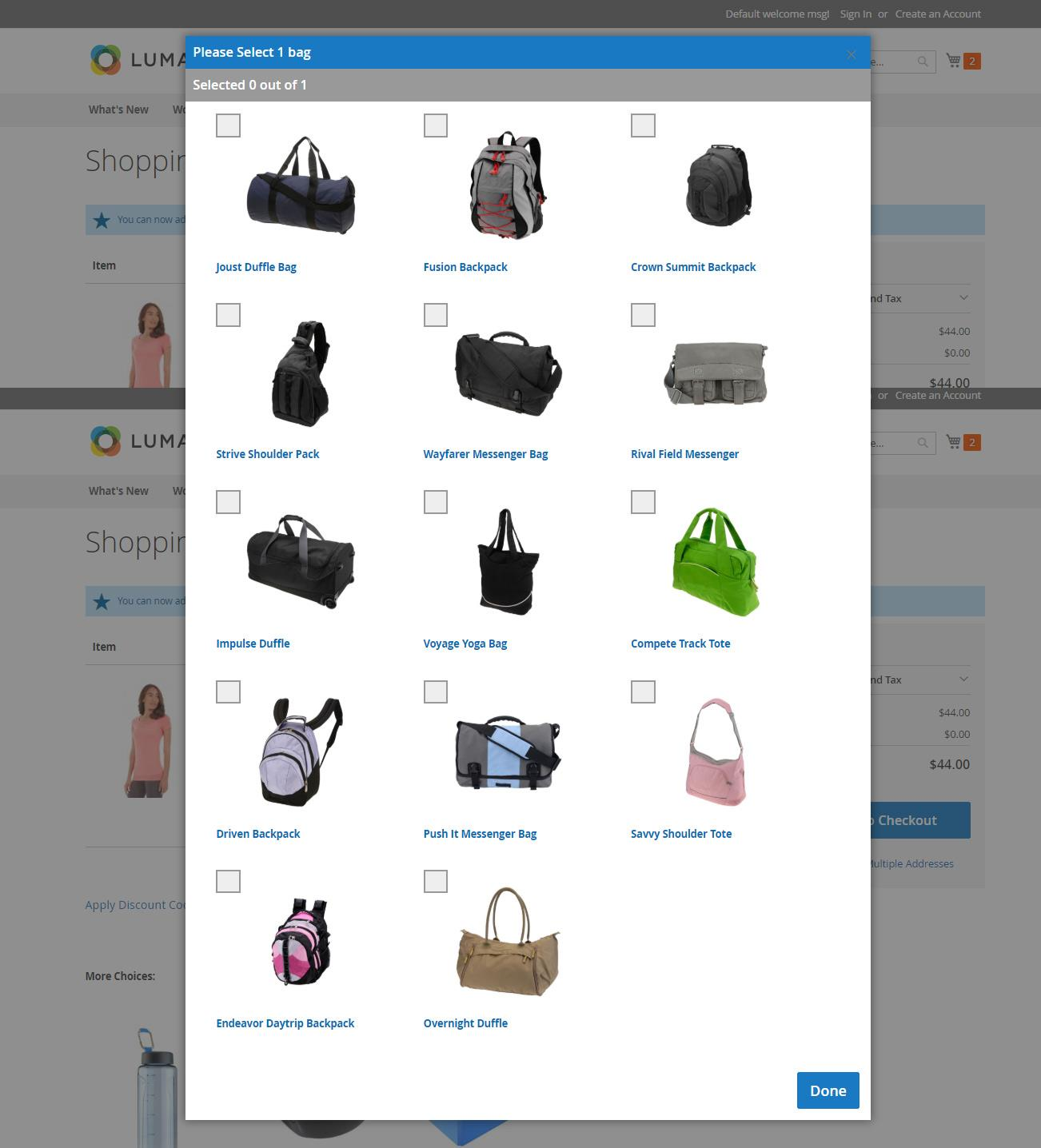
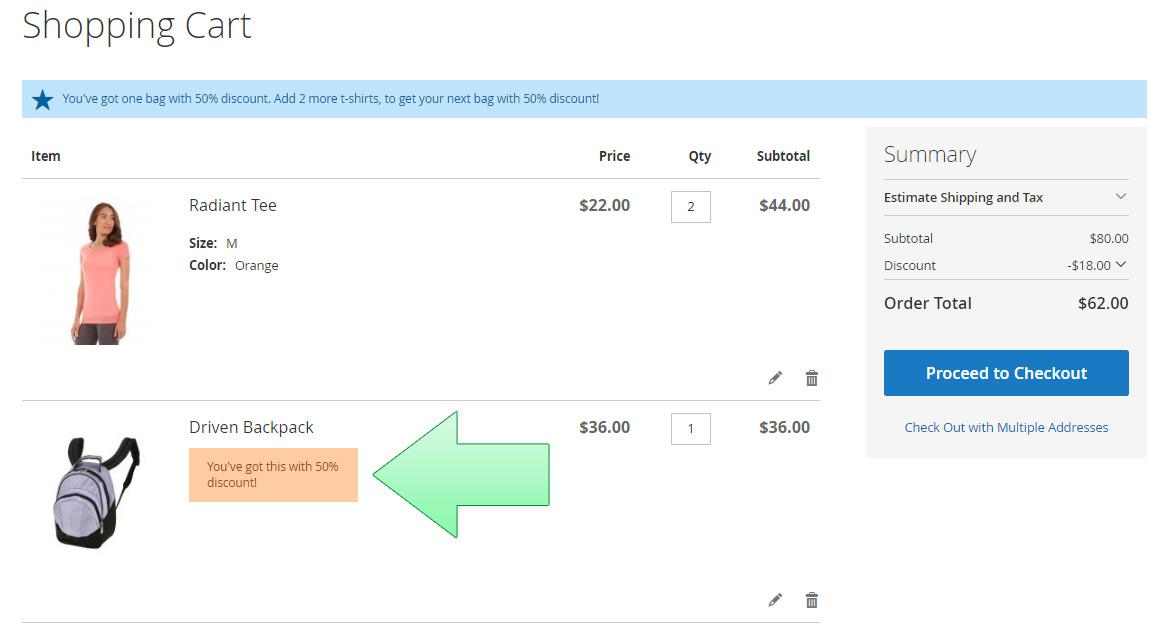
- Select the desired bag, and click “Done”. You should get the gift message in the cart next to the bag, saying “You’ve got this with 50% discount” –
Sample promotion #2: Buy for $100 or more in the store, and get a fitness bottle for free!
In this tutorial we will create a promotion “Buy for $100 or more in the store, and get a fitness bottle for free!”, that is, when the customer adds products of total cost $100 or more, a fitness bottle is auto-added to the cart with a 100% discount.
Step 1: creating the rule
- Go to the Admin panel --> Marketing --> Cart Price Rules, and click “Add New Rule”.
- In the Rule Information tab, insert the following:
- Rule name: Buy for $100 or more in the store, and get a fitness bottle for free!
- Active: Yes
- Websites: The websites which you want your promotion to be active in.
- Customer Groups: The customer groups which you want your promotion to be active for.
- Coupon: No Coupon
- In the Actions tab, in the Apply drop down, choose “Percent Discount”, under “Get free or discounted product(s) on each X$ spent”, and wait until the “Please wait” message disappears -
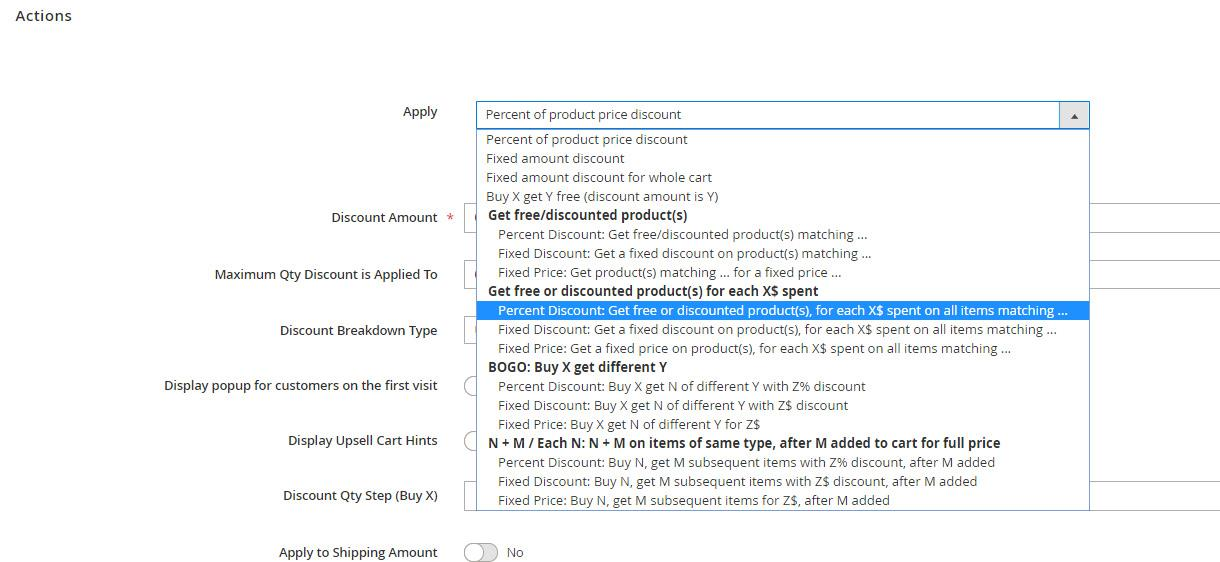
- After the loading is finished, you should see the following –
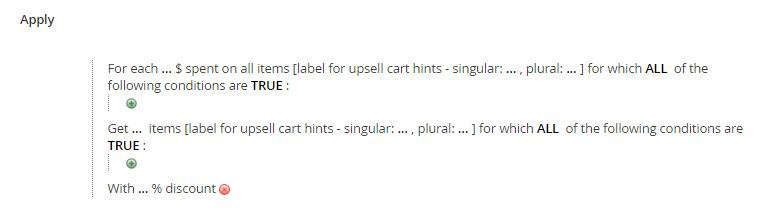
Fill in the data like the following –
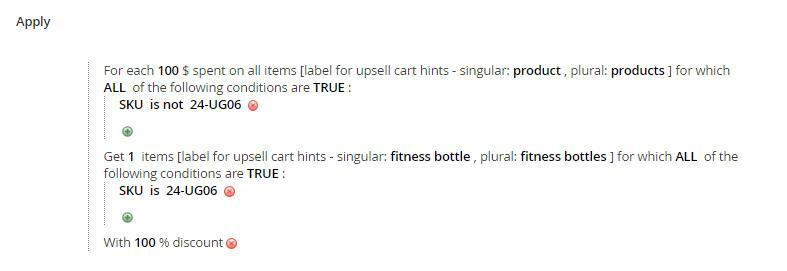
Explanation:
- We filled “SKU is not 24-UG06” in the first part, where 24-UG06 is the SKU of the fitness bottle, because we want to give the customer a free bottle if the sum of all products except the fitness bottle in the customer’s cart is $100 or more.
- We filled “For each 100$ spent …” in the first part, for the same reason.
- We filled “SKU is 24-UG06” in the second part, because we want to apply the 100% discount on the fitness bottle.
- We filled “Get 1 items …” in the second part, because we want to apply the 100% discount on one fitness bottle.
- We want the upsell cart hints, the product hints and the gift messages to use the words “product”, “products”, “fitness bottle” and “fitness bottles” when constructing the hint. This is why we fill them in the “[label for upsell cart hints..]” part.
Those fields are not mandatory – if you don’t fill them, the promotion will still work, but the cart hints, the product hints and the gift messages won’t get displayed.
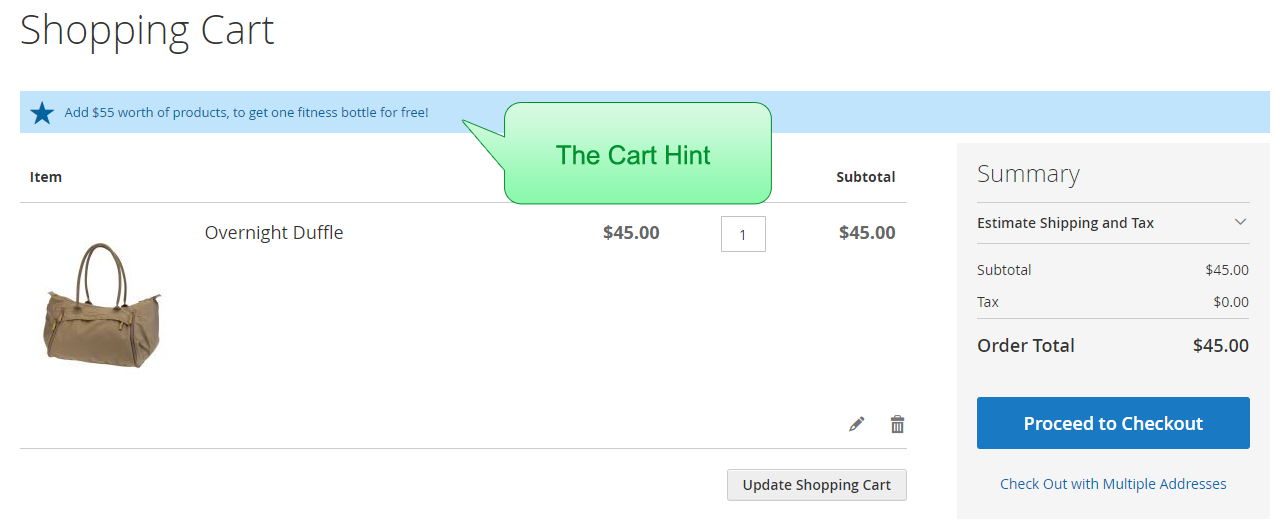
An example of a cart hint that uses the words that we filled in – “Add $55 worth of products, to get one fitness bottle for free!”
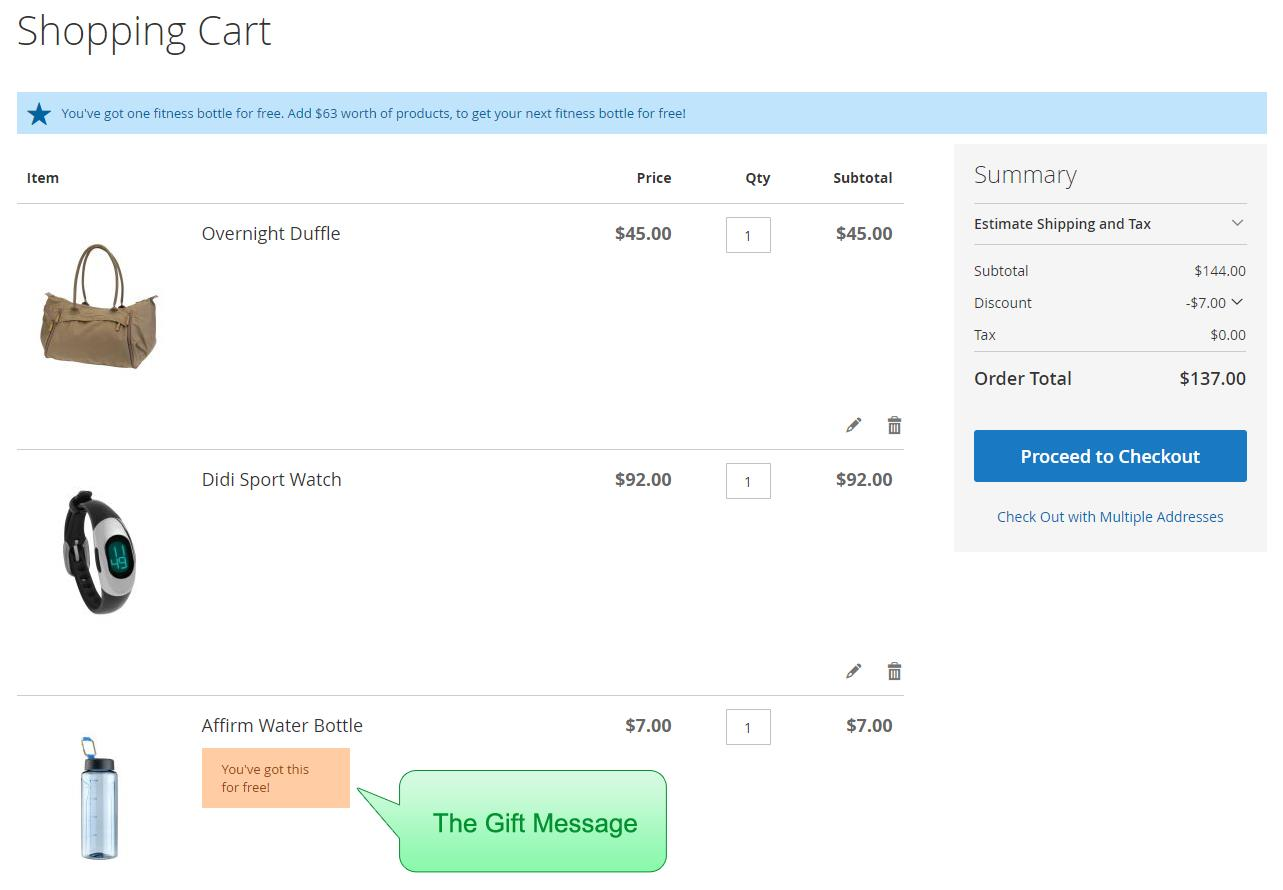
An example of a gift message – “You’ve got this fitness bottle for free!”
- In the following “Action” fields, set the following values -
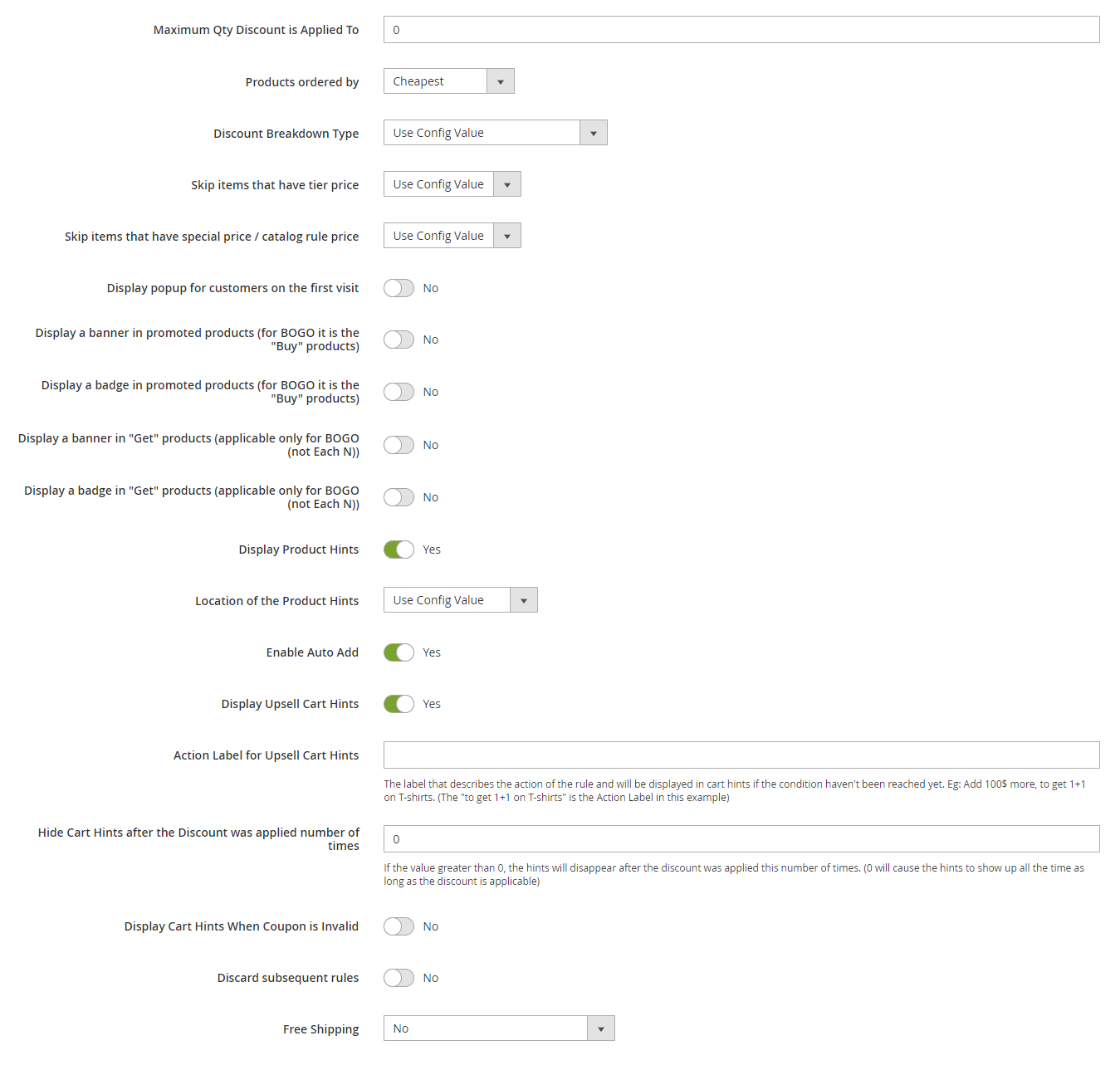
We left all the fields untouched except “Display Upsell Cart Hints”, “Display Product Hints” and “Enable Auto Add”.
We set “Display Upsell Cart Hints” to “Yes”, because we want the upsell cart hints to show up in the cart –
We set “Display Product Hints” to “Yes”, because we want the product hints and the gift messages to show up in the cart -
- Save the rule by clicking the “Save” button.
- Wait until the re-index process runs (see Step 1 of the previous sample promotion).
Step 2: testing the rule
- Go to the front end of your site and add one product to cart (that costs less than $100). In our example, we add a bag that costs $45.
- Go to the cart page. You should get an upsell cart hint “Add $55 worth of products, to get one fitness bottle for free!” –
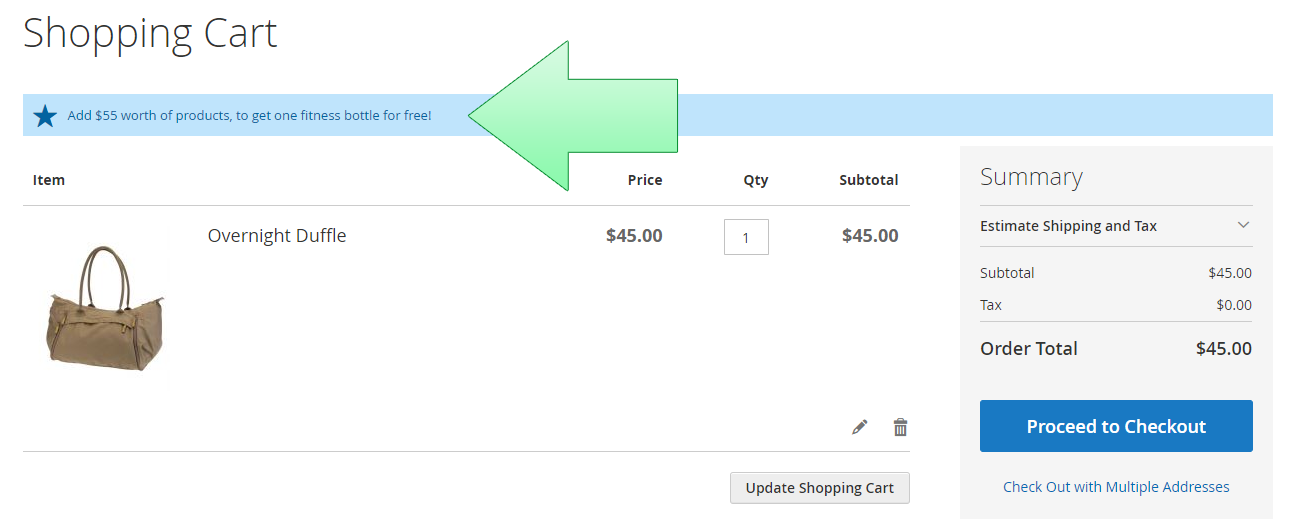
- Add a product that will make the total amount more than $100. We add a watch that costs $92. Go to the cart page. You should see that the fitness bottle was auto-added to the cart.
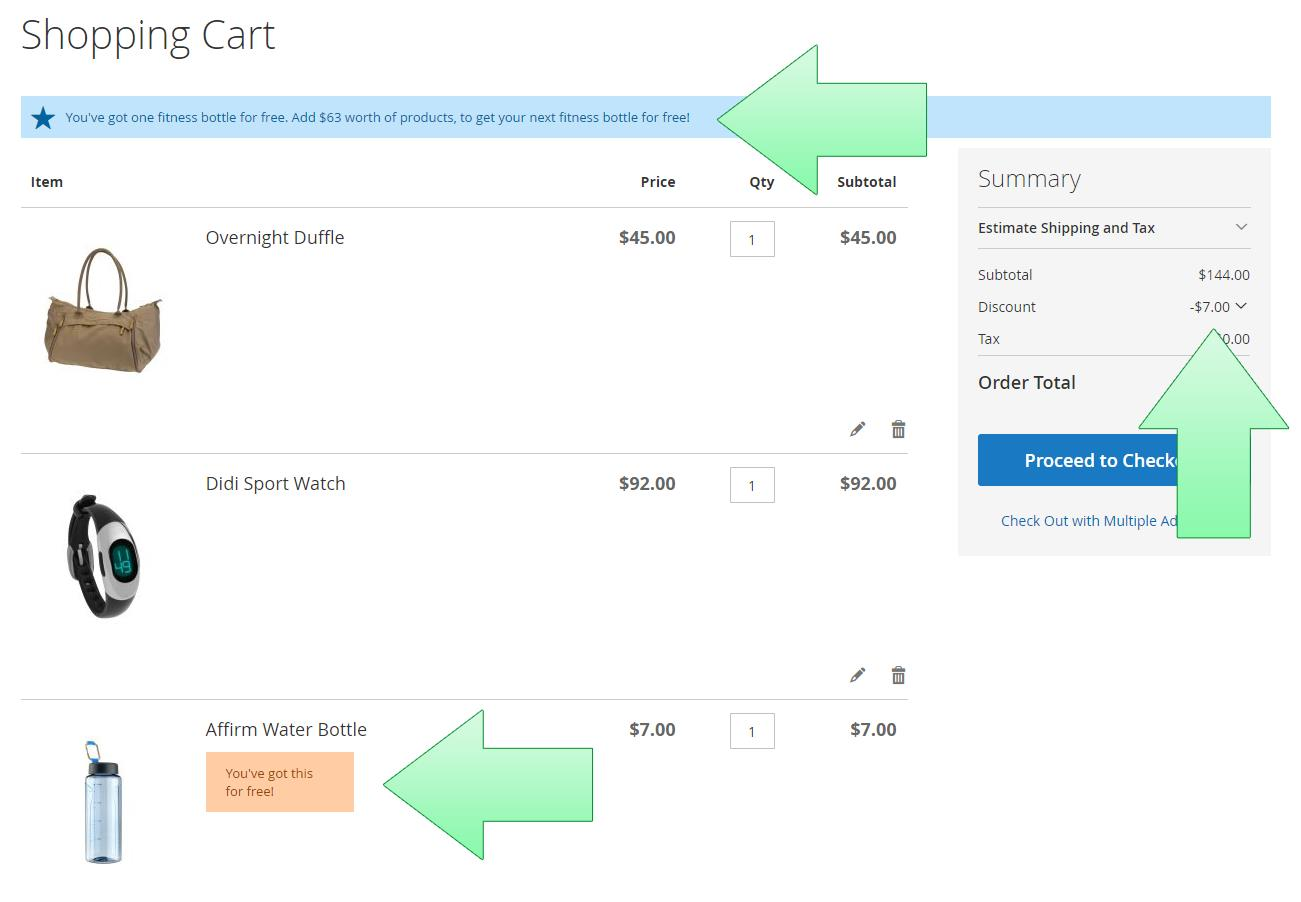
There is also a cart hint message “You've got one fitness bottle for free. Add $63 worth of products, to get your next fitness bottle for free!”. If you want the hint message to not show up when the customer already got one bottle for free, set the “Hide Cart Hints after the Discount was applied number of times” to 1.
Now, let’s proceed to the manual that will explain in detail the different promotion types and the various features of the extension!