Get free / discounted product(s) for each $X spent
This promo type is useful for encouraging the customer to spend more, by offering a free gift or a discounted product on each $X spent. You can also add conditions to the rule, causing only the matching customers to enjoy the promotion.
Promo examples:
- "Get a free fitness bottle on each $100 spent."
- "Female customers get a free mascara on each $50 spent in the shop."
Configuration
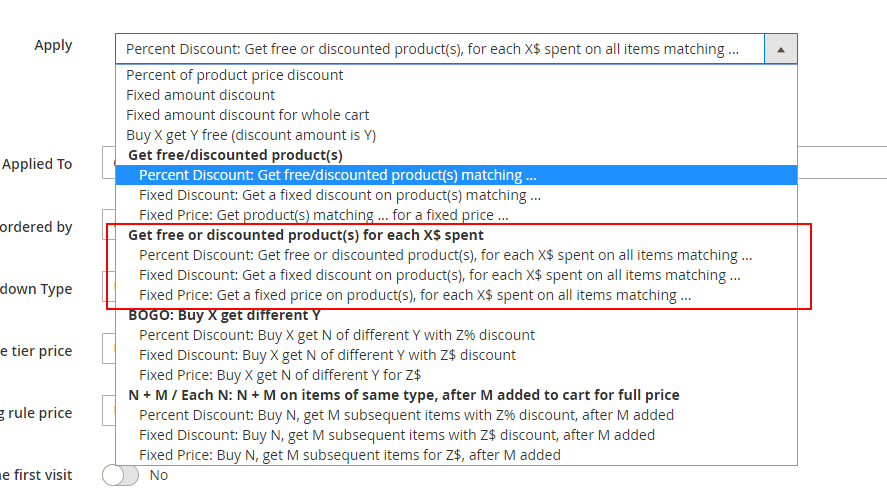
In the actions list, under “Get free or discounted product(s) for each X$ spent”, you can choose the Percent Discount, Fixed Discount or Fixed Price sub actions -
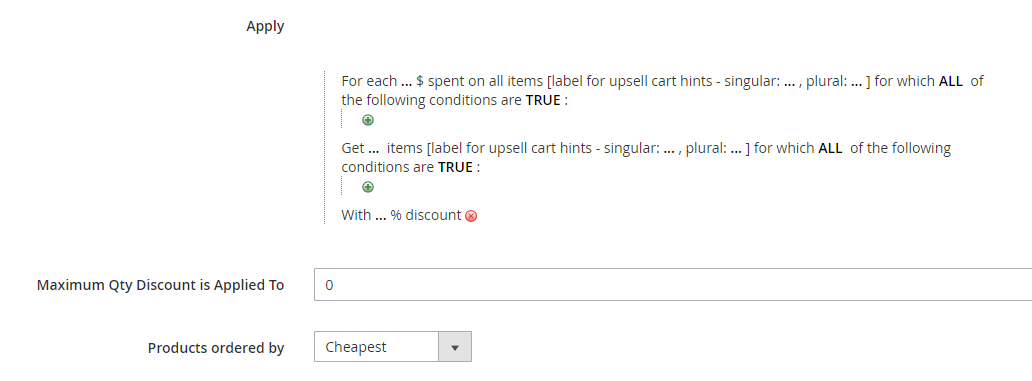
Once selected, the following fields will show up -
Fields explanation
-
For each … $ spent – the amount that the customer needs to spend on the Buy items in order to get the free / discounted item(s).
-
For each … $ spent on all items for which ALL of the following conditions are TRUE [top] – the conditions that define the Buy items.
-
For each … $ spent on all items [label for cart hints – singular / plural] – the name that will show up in the cart hints, representing the Buy items.
-
Get … items – number of free / discounted items that the customer gets.
-
Get … Items for which ALL of the following conditions are TRUE [bottom] – the conditions that define the Get items.
-
Get … items [label for cart hints – singular / plural] – the name that will show up in the cart hints and the product hints, representing the discounted items.
-
With …% discount – the discount percent that will be applied on the Get items (fill in 100 to give the Get item for free).
-
Maximum Qty Discount is Applied To – the maximum Get products quantity that the discount can be applied to.
For example, if the rule is “On each $50 spent, get a free bottle”, and the Maximum Qty Discount is Applied To is 2, the customer will only be able to get maximum 2 free bottles, even if their total spent amount is $150 or higher.
-
Products ordered by – this field tells the extension what items to discount in case there are more than the defined number of items that match the conditions of the Get item.
For example: The rule is “On each $50 spent, get a free bottle”, the customer spent $55, so they should get one bottle for free, but they have two bottles in their cart. If Products ordered by is set to cheapest - the extension will discount the cheapest bottle in the cart, otherwise if it is set to most expensive – the extension will discount the most expensive bottle in the cart.
The “Buy” items must be distinct from the “Get” items. If the extension encounters a product that matches both groups, the only way to handle it would be a very slow algorithm (trying all the options).
If you want the “Buy” products to include the “Get” products, create separate products for the “Get” group. For example, duplicate the products of the category “Watches” and put the new products in a different category (e.g. “Watches Gifts”). Then, in the “Buy” condition use all products except the category “Watches Gifts”, and in the “Get” condition use the category “Watches Gifts”.
Percent Discount
Example
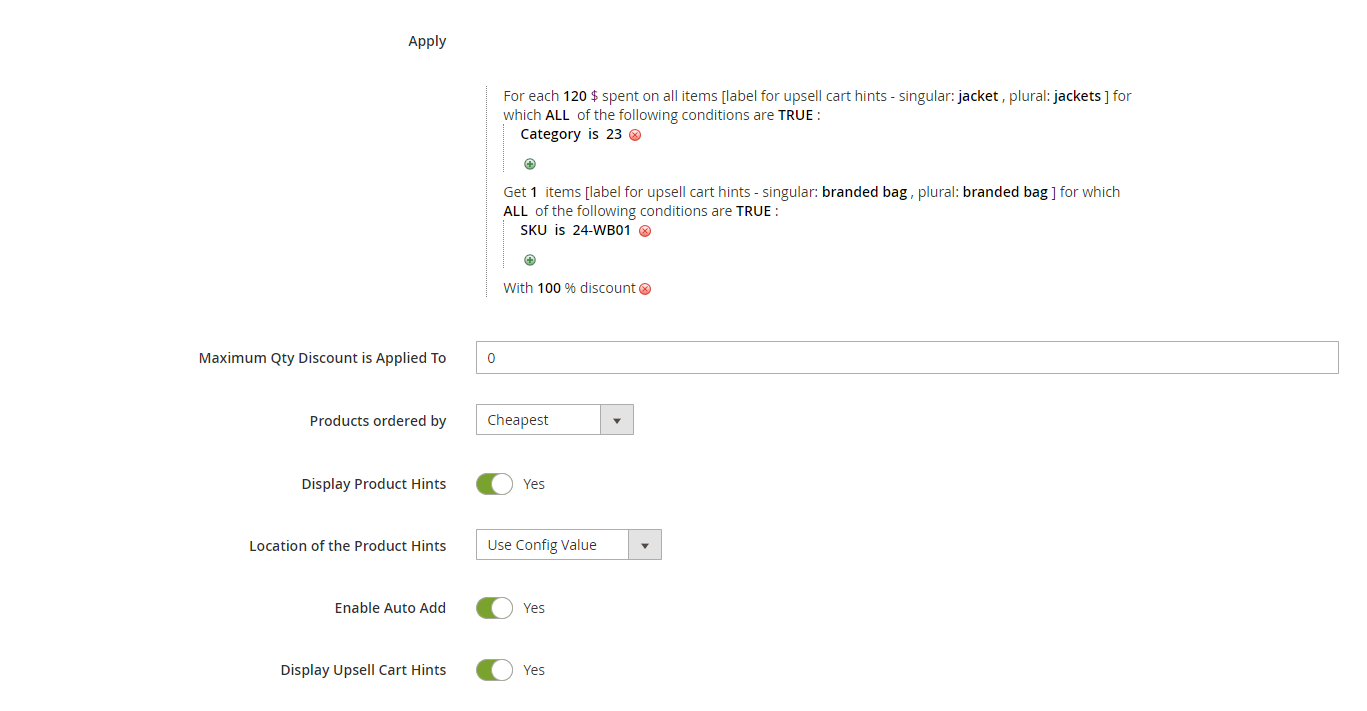
The rule in this example is – “Get a branded bag, on each $120 spent on jackets”. (Note: In our example, jacket is any product that belongs to category 25, and the branded bag is a bag with SKU 24-WB01.)
The “Products ordered by” is “cheapest”, but it doesn’t affect anything because the branded bag is only one specific bag, so the customer can’t have a few different branded bags in their cart.
“Display Product Hints” is “Yes” and “Enable Auto Add” is “Yes”. Since there is only one branded bag, and the discount amount is 100% - the branded bag will be auto-added to the customer cart each time they spend $120 on jackets (See Product hints, gift messages and auto-add for more information about the auto-add behavior). If the customer removes some products from their cart and the amount is less than $120 – the auto-added items will be automatically removed by the extension.
“Display Upsell Cart Hints” is “Yes” – the cart hints are useful in this rule example, because they tell the customer how much more they need to spend in order to get their next free branded bag.
Cart examples for this rule:
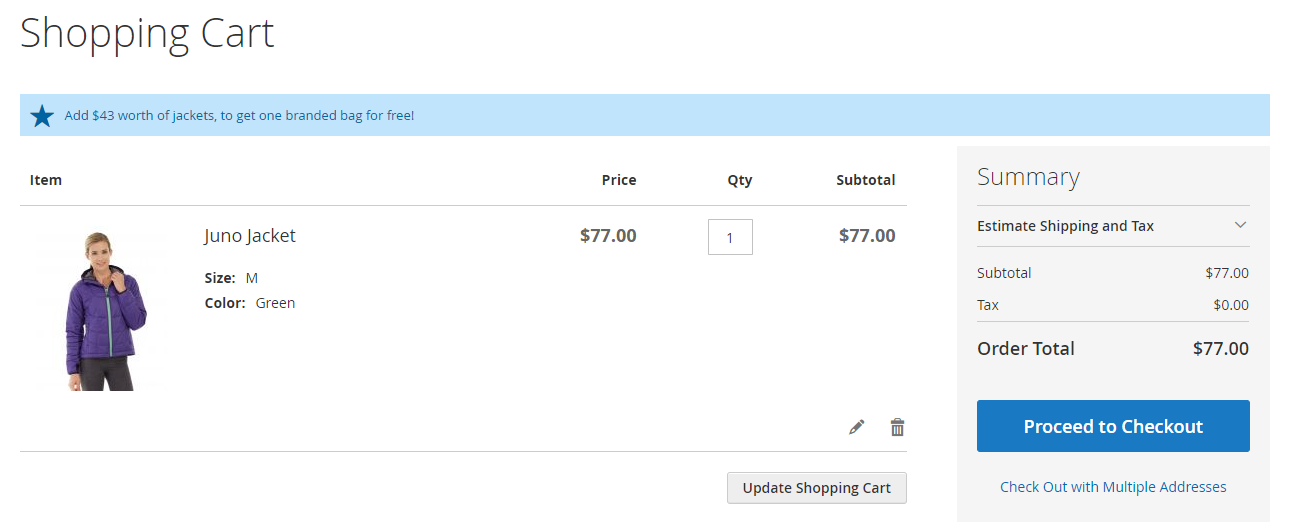
- Customer adds 1 jacket ($77) to cart. There is no discount applied. The cart hint message is “Add $43 worth of jackets, to get one branded bag for free!” -
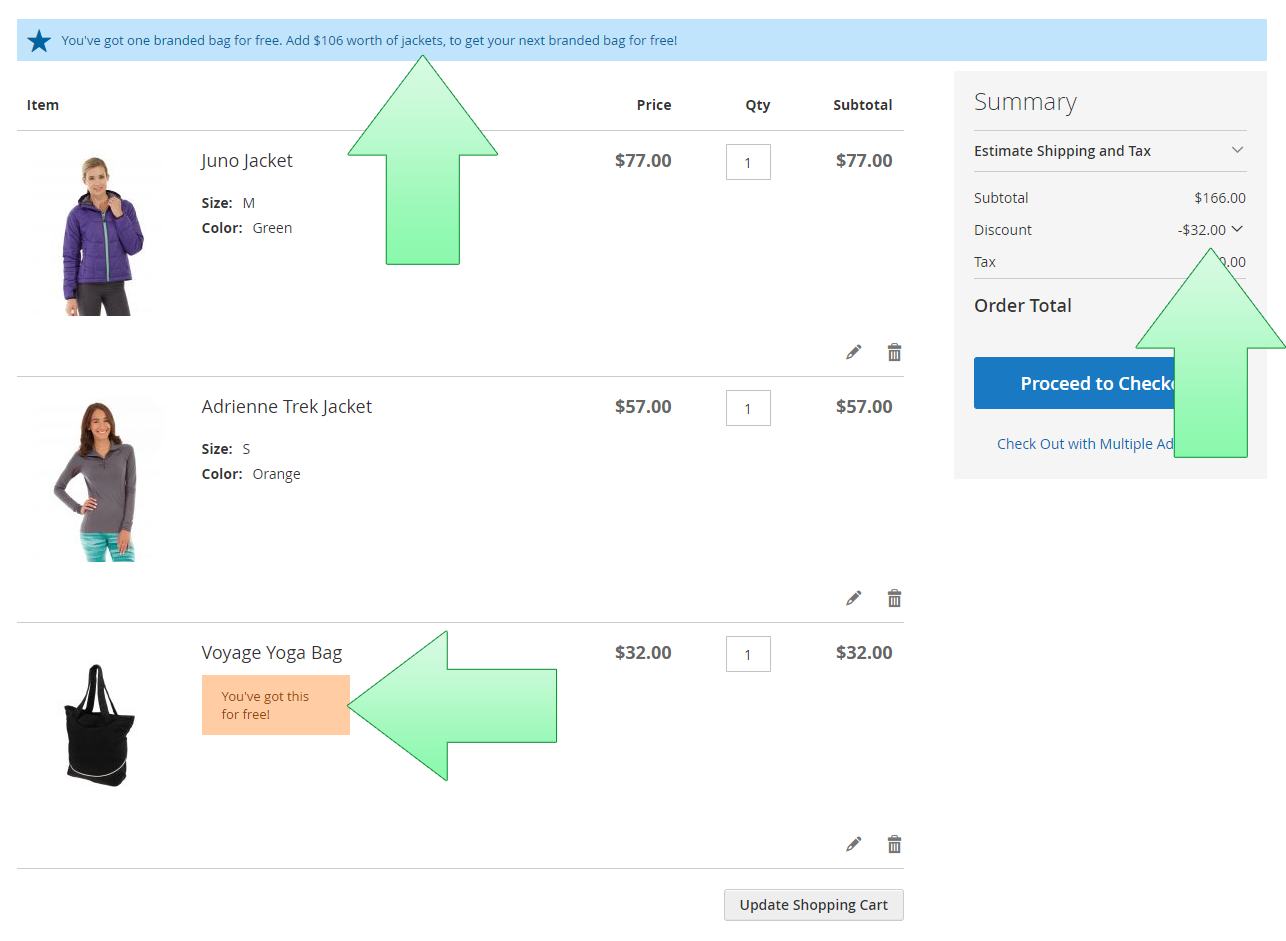
- The customer adds another jacket ($57) to the cart. The branded bag gets auto-added. The gift message “You've got this for free!” shows up next to the branded bag. The upsell cart hint message is now “You've got one branded bag for free. Add $106 worth of jackets, to get your next branded bag for free!” -
Fixed Discount
Example
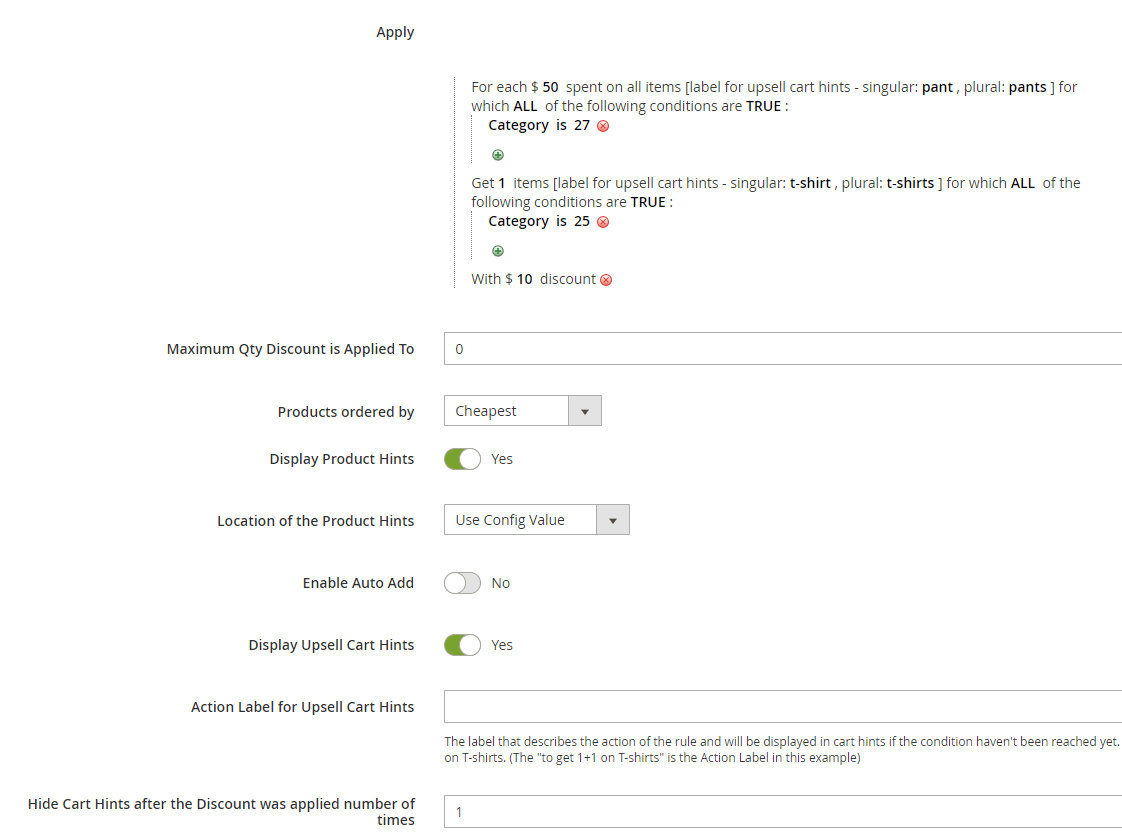
The rule in this example is – “On each $50 spent on pants, get $10 discount on t-shirts”. (Note: In our example, t-shirt is any product that belongs to category 25 and pant is any product that belongs to category 27.)
We set the “Hide Cart Hints after the Discount was applied number of times” to 1, so the cart hints won’t show up if the customer has already got a discount for this rule.
Cart examples for this rule:
- The customer adds a pair of pants ($42) to the cart. In the cart, the upsell cart hint message “Add $8 worth of pants, to get one t-shirt with $10 discount!” shows up.
- The customer adds another pair of pants ($48) to the cart. The upsell cart hint is “You can now add one t-shirt with $10 discount!”. There is a product hint next to one of the pants, saying “Add one t-shirt with $10 discount”. The customer clicks the product hint. They get a popup that allows them to select their discounted t-shirt. They select a t-shirt and click “Done”.
- The cart refreshes. The discount amount is $10. There is a gift message next to the t-shirt saying “You’ve got this with $10 discount”. There is no upsell cart hint in the cart (because we’ve set the “Hide Cart Hints after the Discount was applied number of times” to 1).
Fixed Price
Example
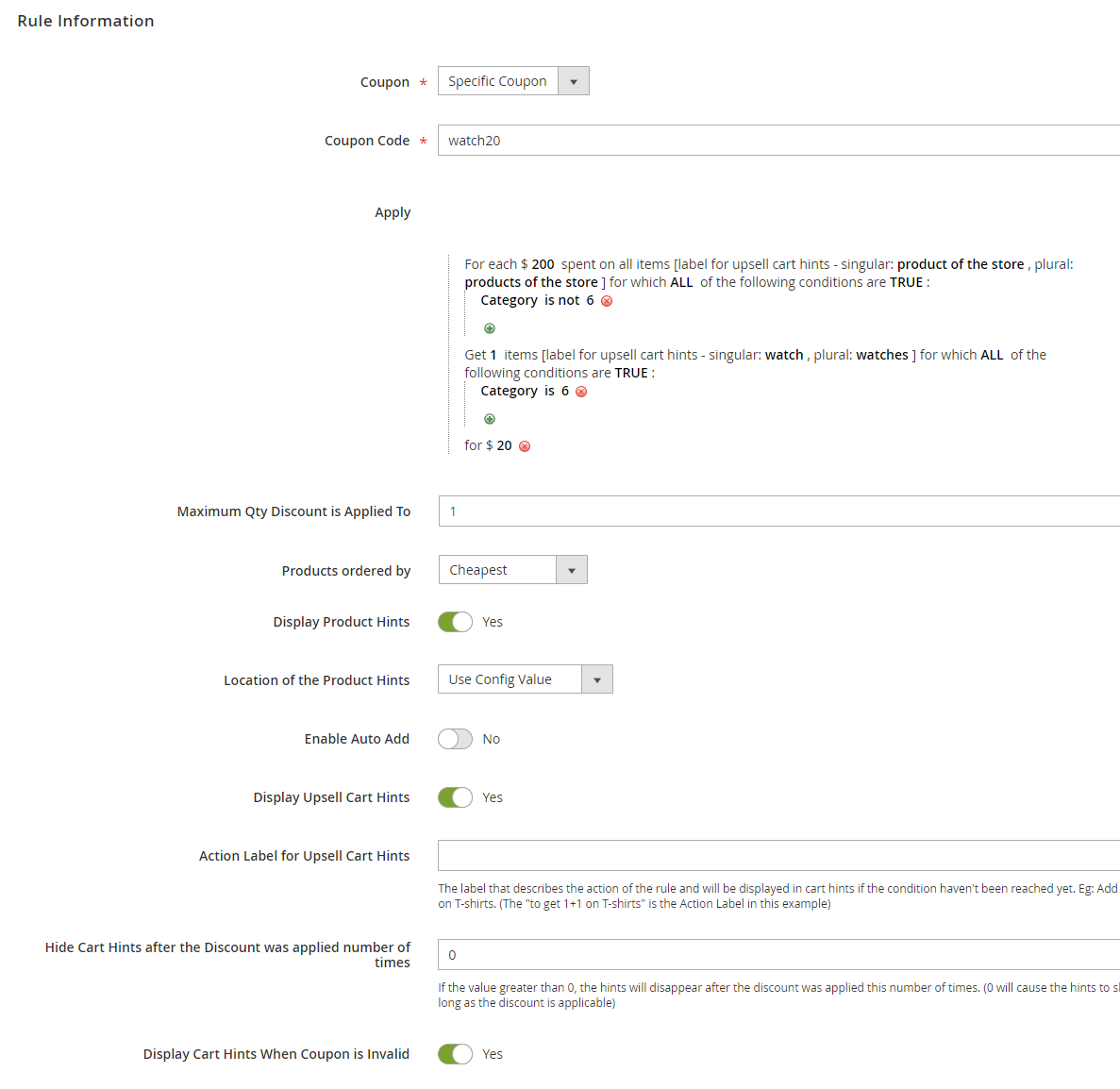
The rule in this example is – “Spend $200 or more in the store, and get a watch for $20 only”.
In the first part of the rule, the condition is “Category is not 6” – which means all products except watches, because the “Buy” products have to be distinct from the “Get” products (see the note above).
There is a coupon code “watch20” in the rule. We set the “Display Cart Hints When Coupon is Invalid” to “Yes”, because we want to display cart hints when the customer applies a coupon that doesn’t fully match the conditions. We set the “Maximum Qty Discount is Applied To” to 1, because we want to limit the number of discounted watches per order to one.
Cart examples for this rule:
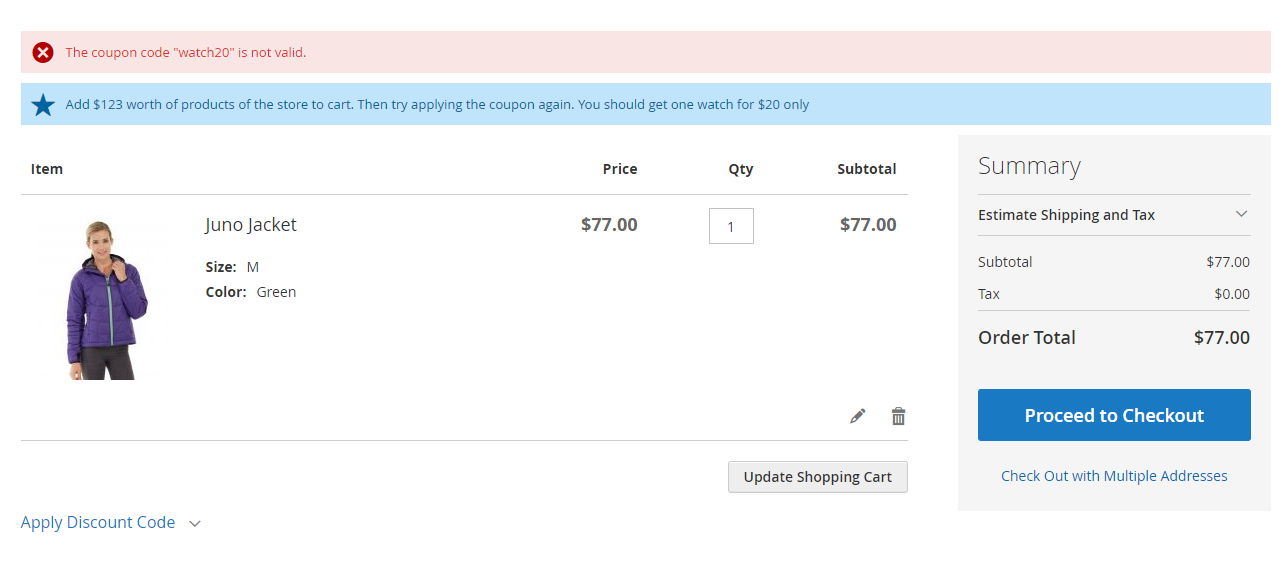
- The customer has a jacket ($77) in the cart. They apply the coupon “watch20”. They get the invalid coupon hint message “Add $123 worth of products of the store to cart. Then try applying the coupon again. You should get one watch for $20 only” -
- The customer adds two more jackets ($138 together) to the cart, and applies the coupon watch20 again. They get a product hint next to one of the jackets saying “Add one watch for $20 only”. They click the product hint, select a watch ($42), and click “done”. The discount amount in the cart is now $20.
- The customer adds a coat ($250) to the cart. In the cart there are no cart or product hints. This is because we’ve set the “Maximum Qty Discount is Applied To” to 1.