Promo Block
The extension allows you to display a “Promo Block” in the cart, product pages and widgets (that can be used in any CMS page). The promo block displays the images of the products of the promo, and a button that allows the customer to add the promo products to cart easily.
If enabled for a specific promotion, the promo block of that promotion will be displayed within the cart, the widget and the product pages that are part of the promotion. (See Displaying the Promo Block in a CMS page for more details about the promo block widget).
Example
The ongoing promotion is “Buy 2 t-shirts and a pant for $100 only”. The promo block in the product page is –
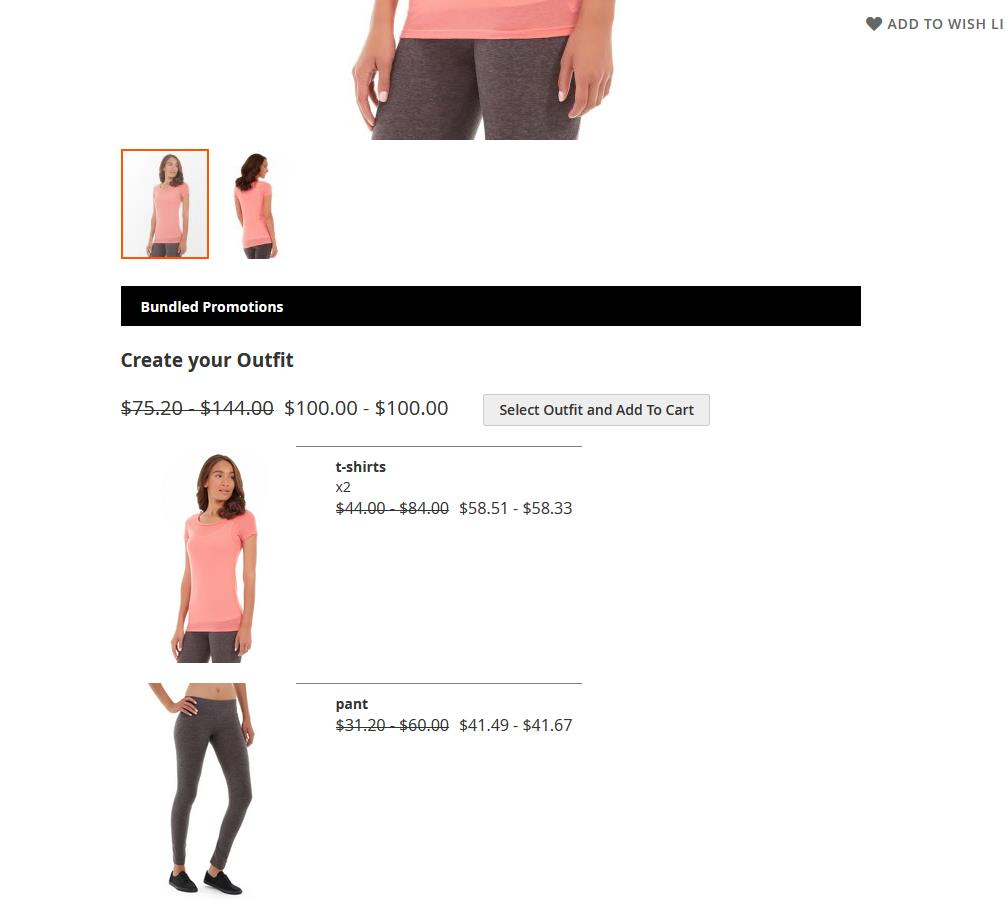
Promo Block fields explained
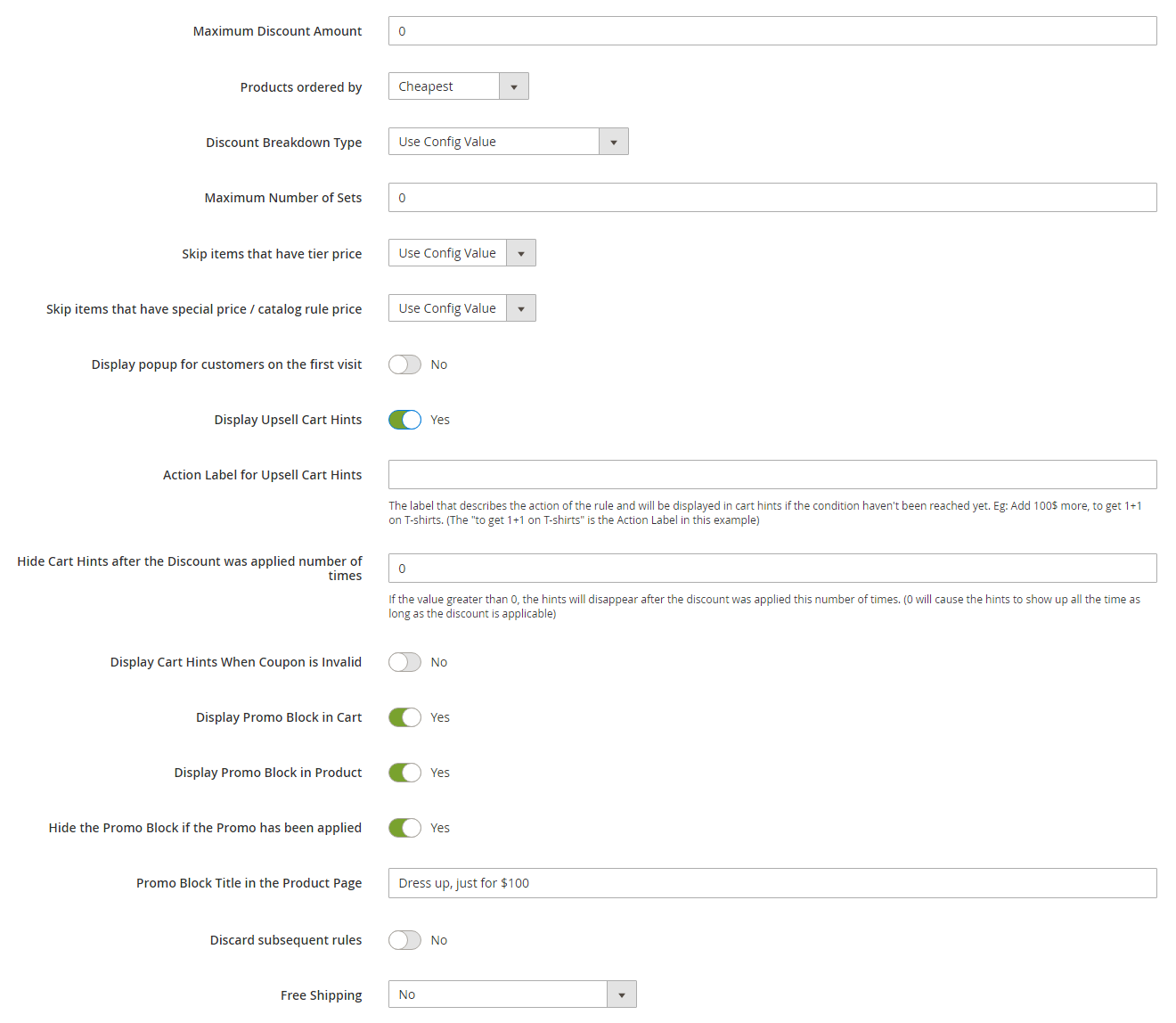
In the cart promotion backend view, under the “Actions” tab, you will see the following fields –
-
Display Promo Block in Cart (Yes/No) – defines whether the promo block of this rule is displayed in the cart and the widget. If this field is set to “No”, the promo block of this rule won’t show up neither in the cart, nor in the widget.
-
Display Promo Block in Product (Yes/No) – defines whether the promo block of this rule is displayed in the product pages that are part of the promotion. If this field is set to “No”, the promo block of this rule won’t show up in these product pages.
-
Hide the Promo Block if the Promo has been applied – defines whether the promo block should disappear after the discount of the promo was applied once.
Example: The promo is “Buy a bag and a watch with 10% discount!”. The customer has only a t-shirt in cart. In the cart / the product page they see the promo block of the promotion “Buy a bag and a watch with 10% discount!”. The customer adds a bag and a watch to the cart. The promo block of this promotion disappears from the cart / product page (because it was applied once).
-
Promo Block Title in the Product Page – the title that will be used in the product page for this promo block. Note that in the cart page, the extension uses the rule name for the promo block title.
-
The Set Name for the Products in the Promo Block – this phrase will be used in the add button. E.g. if the value of this field is “Combo”, the text on the add button will be “Select Combo and Add to Cart”.
Promo Block titles and labels
-
The main title of the block – defined within the Stores Configuration. This is the text that will be displayed above the list of the promo blocks in the cart and the widget (not the product pages).
-
The title of the specific Promo Block – in the cart it is taken from the name of the rule, while in the product pages it is taken from the “Promo Block Title in the Product Page” field.
-
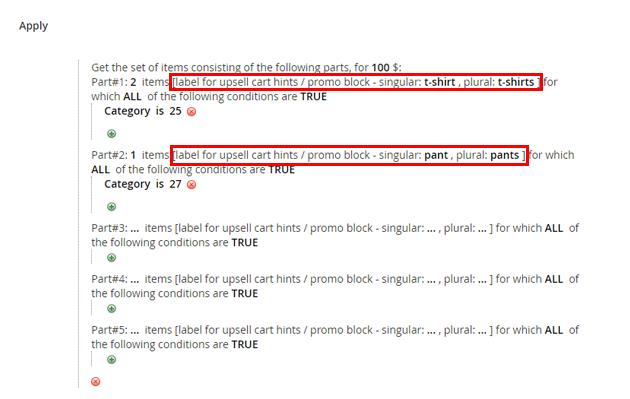
The label of the bundle part – defined in the bundled parts within the rule action, in the [label for upsell cart hints / promo block - singular: …, plural: … ]. Those are the blue labels that show up whenever the user moves the mouse over the blocks.
Example: The action fields of the rule “Buy 2 t-shirts and a pant for $100” -
Cart Item Attributes and the Promo Block
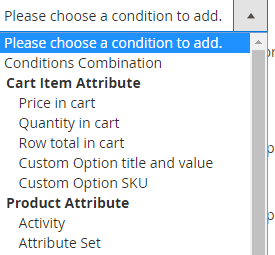
If one of the bundled parts conditions contains (one or more) cart item attributes, the promo block won’t show up.
The cart item attributes are the following -
Displaying the Promo Block in a CMS page using the Promo Block Widget
In the following tutorial we will show how to display the promo block widget in a CMS page.
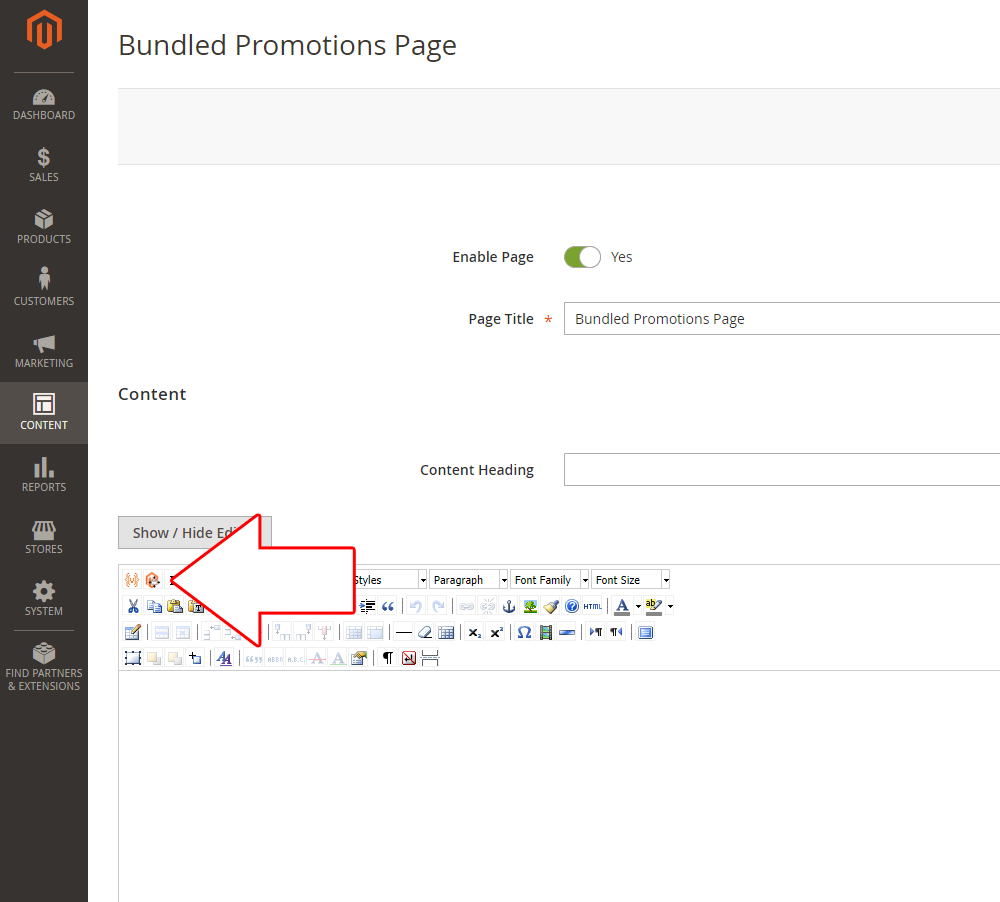
Step 1: Go to the desired CMS page (in this example we will use a page with the key “bundled-promotions”). In the content, within the WYSIWYG, click on the “insert widget” button -
Step 2: In the opened window, in the “Widget Type” dropdown, select “Mexbs Promotions List” -
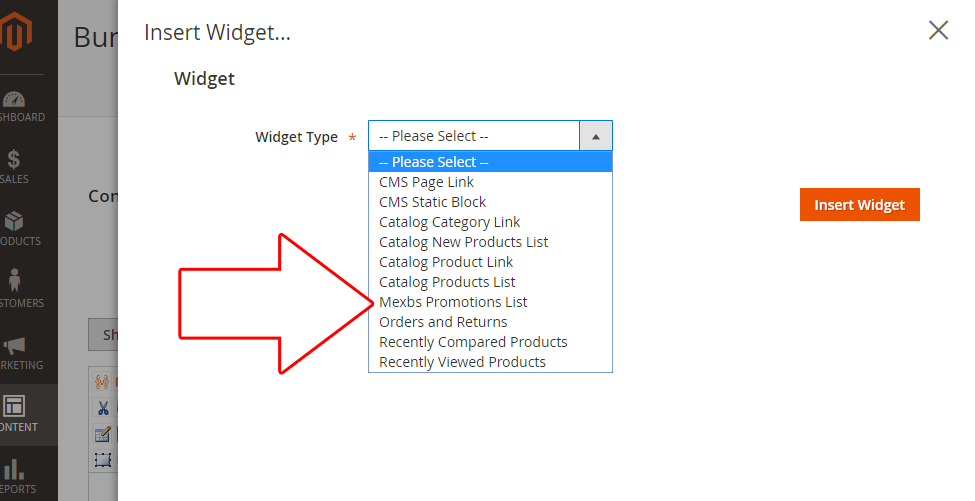
Click “Insert Widget” and Save the Page.