Getting Started
Before explaining the promotion configurations and the features of the extension in detail (we will get to it soon), let’s create a simple promotion together (“Buy a Desiree t-shirt and a Sylvia Pant with a 10% discount”), just to get the basic “feeling” of how the extension works.
Promotion Creation Tutorial: Buy a Desiree t-shirt and a Sylvia Pant with a 10% discount
In this tutorial we will create a promotion “Buy a Desiree t-shirt and a Sylvia Pant with a 10% discount”, that is, the customer will be able to add the Desiree t-shirt with a Sylvia Pant as an Outfit, and to get a 10% discount on that.
Step 1: creating the rule
- Go to the Admin panel --> Marketing --> Cart Price Rules, and click “Add New Rule”.
- In the Rule Information tab, insert the following:
- Rule name: Buy a Desiree t-shirt and a Sylvia Pant with a 10% discount
- Active: Yes
- Websites: The websites which you want your promotion to be active in.
- Customer Groups: The customer groups which you want your promotion to be active for.
- Coupon: No Coupon
- In the Actions tab, in the Apply drop down, choose “Percent Discount”, under “Bundle: Buy A + B + C + D for …”, and wait until the “Please wait” message disappears -
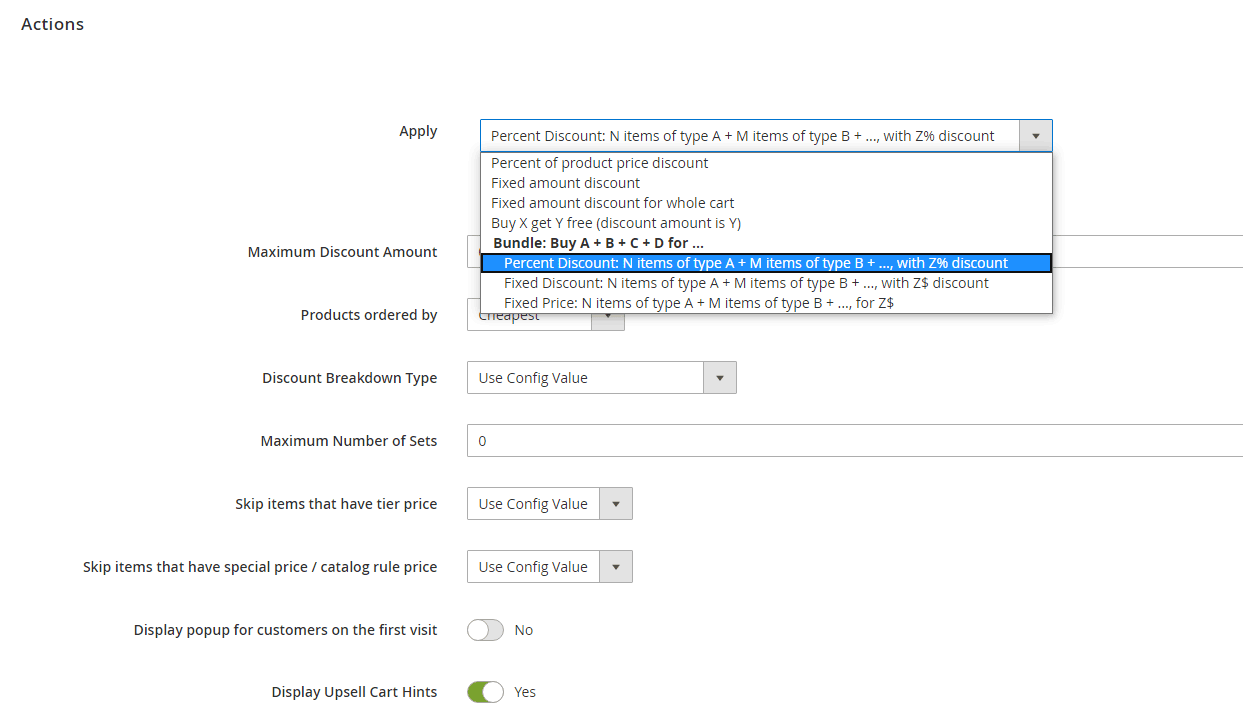
- After the loading is finished, you should see the following –
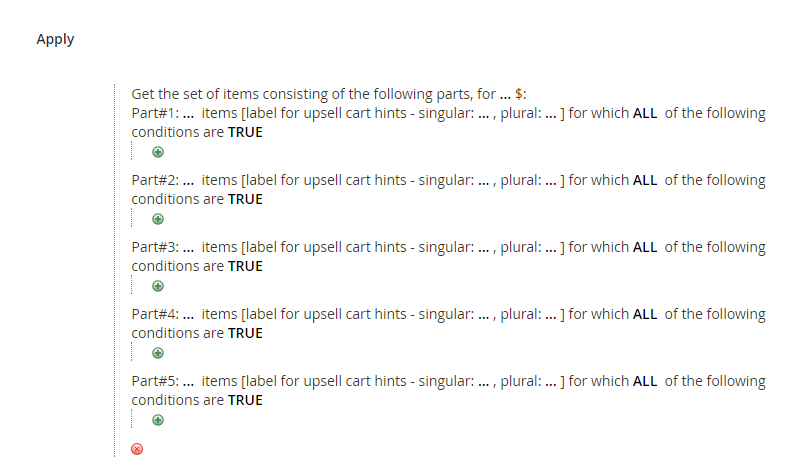
Fill in the data like the following –
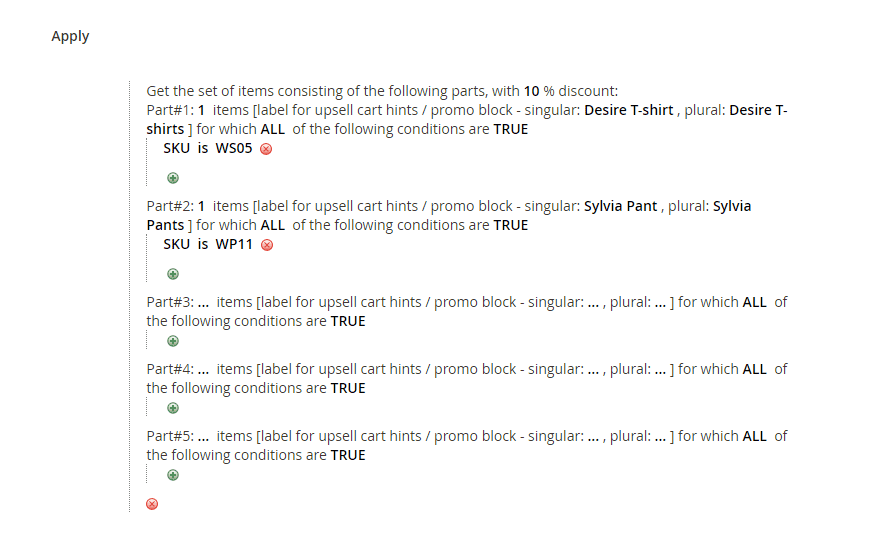
Explanation:
- Since the promotion is “Buy a Desiree t-shirt and a Sylvia Pant with a 10% discount”, we filled SKU WS05 (in our system it is the SKU of the Desiree t-shirt) in part #1, and SKU WP11 (the SKU of the Sylvia Pant) in part #2.
- We want the upsell cart hints to use the words “Desiree T-shirt”, “Desiree T-shirts”, “Sylvia Pant” and “Sylvia Pants” when constructing the hint, as those are the products that the promotion is applied to. This is why we fill them in the “[label for upsell cart hints..]” part. (See Upsell Cart Hints for more details.)
- Since we want the bundle to have a 10% discount, we fill 10 in “with … % discount”.
The label fields are not mandatory – if you don’t fill them, the promotion will still work, but the promo block and the cart hints won’t get displayed.
- In the following “Action” fields, set the following values -
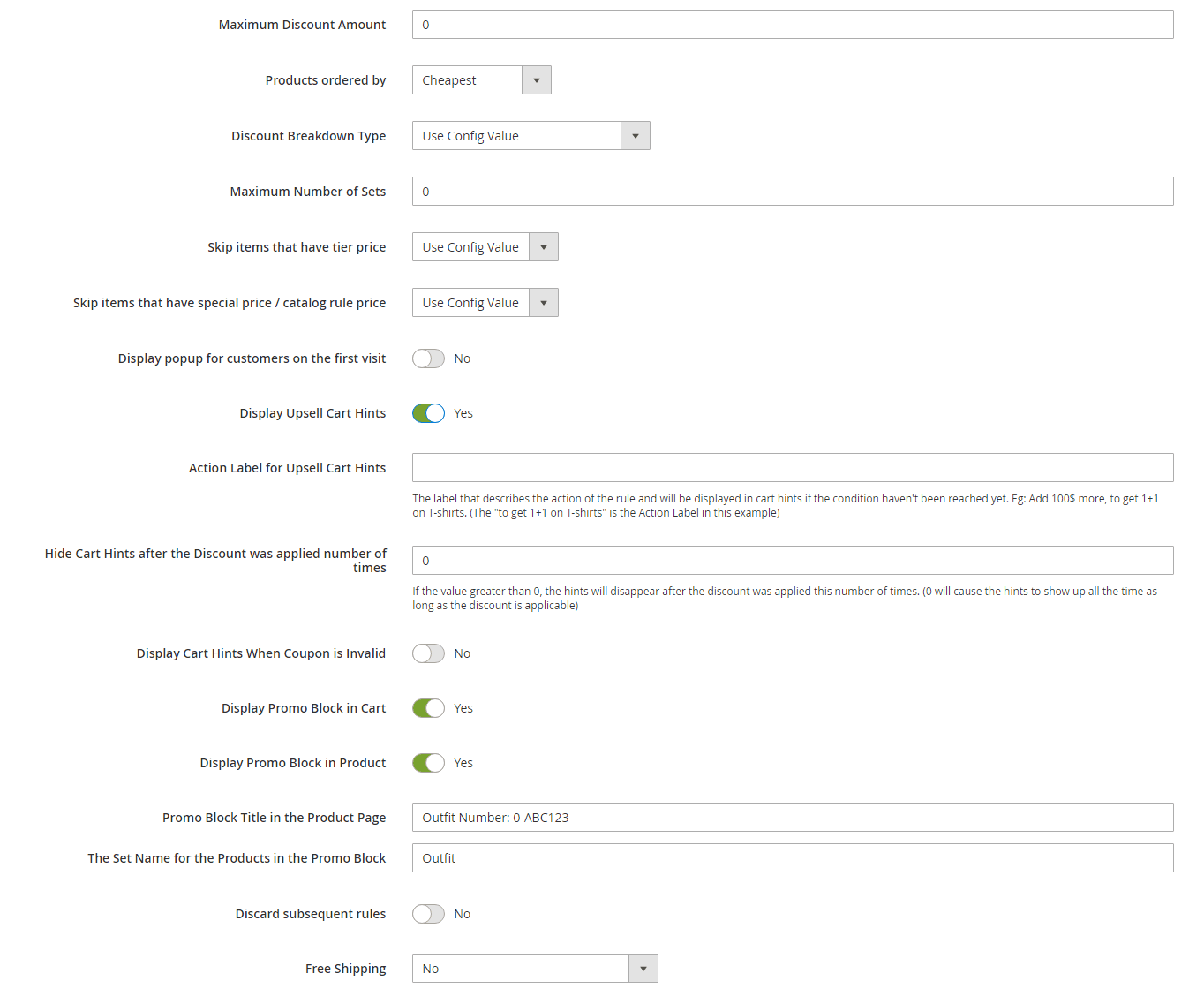
- We set the “Display Promo Block in cart” field to “Yes”, because we want the promo block to show up in the cart and the widget (the widget can be inserted in any CMS block - see Promo Block for more details).
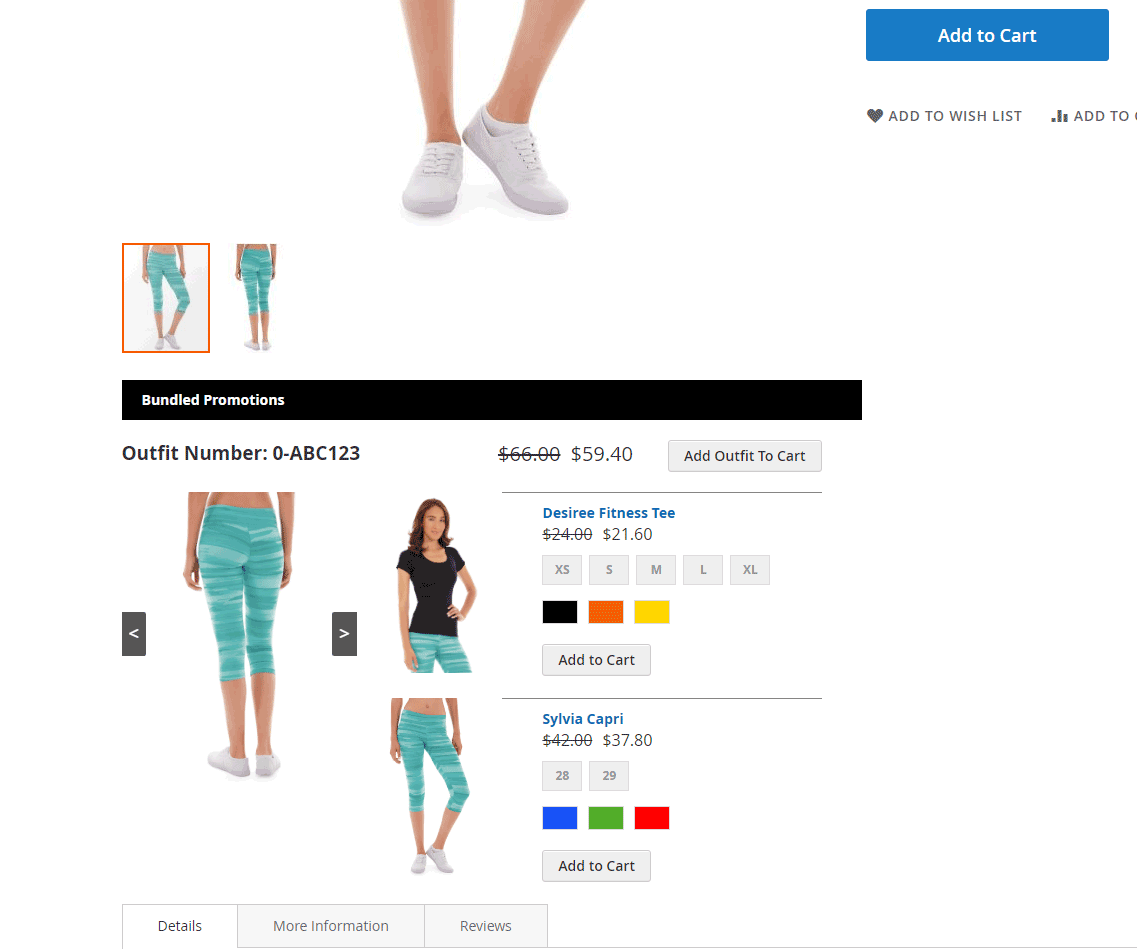
- We set the “Display Promo Block in product” field to “Yes”, because we want the promo block to show up in the product pages that are part of the promotion (in our example the promo block will show up in the Desiree t-shirt and the Sylvia Pant product pages).
- We set the “Promo Block Title in the Product Page” to “Outfit Number: 0-ABC123”, because we want this title to show up above the promo block in the product pages.
- We set “The Set Name for the Products in the Promo Block” to “Outfit”, because we want the buttons of the promo block to use the word “Outfit”. For example “Add Outfit to Cart”.
- We set the “Display Upsell Cart Hints” field to “Yes”, because we want the upsell cart hints to show up in the cart.
- Save the rule by clicking the “Save” button.
Step 2: testing the rule
- Go to the product page of the Desiree t-shirt. You should see the “Bundled Promotions” block that allows you to add the Desiree t-shirt and the Sylvia Pant at one shot -
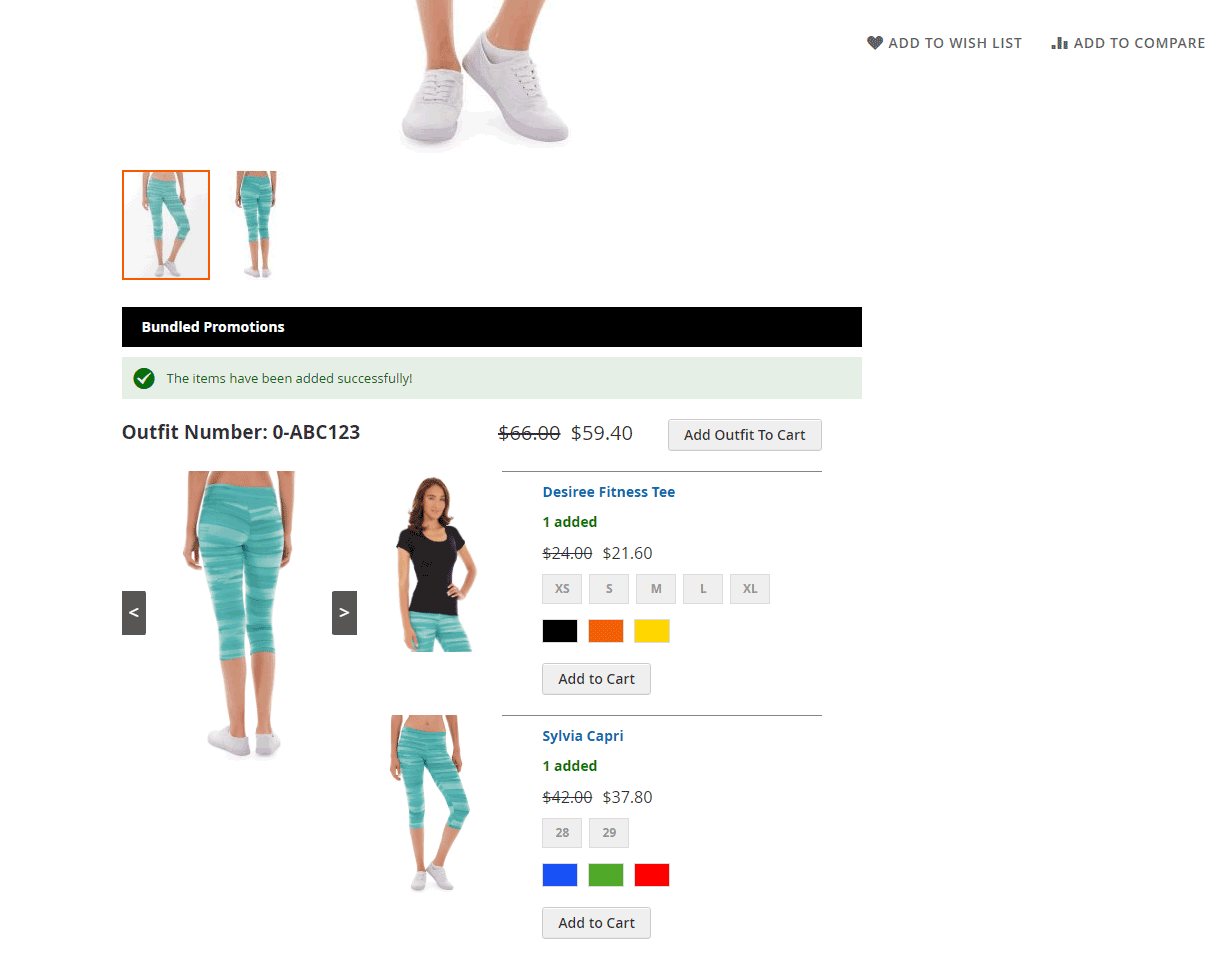
- Select the product options and click “Add Outfit to Cart”. You should see a success message and your mini-cart should update with the added products and the 10% discount –
That’s it! You’ve got the “Buy a Desiree t-shirt and a Sylvia Pant with a 10% discount” promotion all set up.