Creating your first Tiered Coupon
The "Tiered Coupon" extension is built to combine other coupons. This is a very simple and powerful concept.
In this tutorial, we will create the following tiered coupon:
- On subtotal of $50-$100 get 10% discount
- On subtotal of $100-$200 get 25% discount
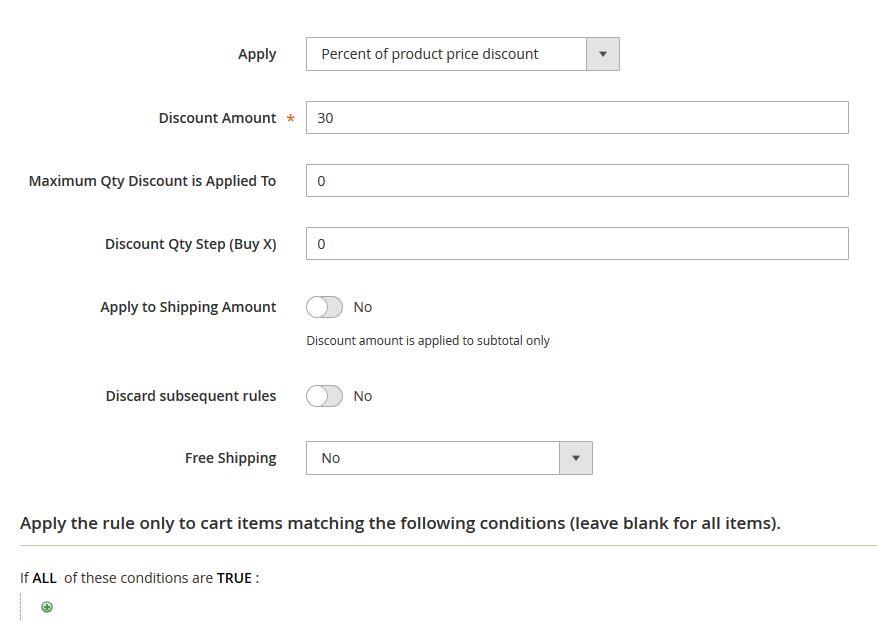
- On subtotal of $200 or more get 30% discount
Step 1: Creating 3 regular coupons
In the admin panel, go to Marketing --> Cart Price Rules.
Create the "On subtotal of $50-$100 get 10% discount" coupon:
- Rule name: On subtotal of $50-$100 get 10% discount
- Status: Active
- Websites: The websites which you want your coupon to be active in.
- Customer Groups: The customer groups which you want your coupon to be active for.
- Coupon: Specific Coupon
- Coupon Code: subtotal-50-100-10
- Priority: 3
- Conditions:
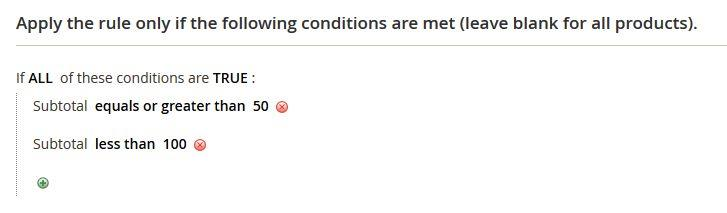
- Actions:
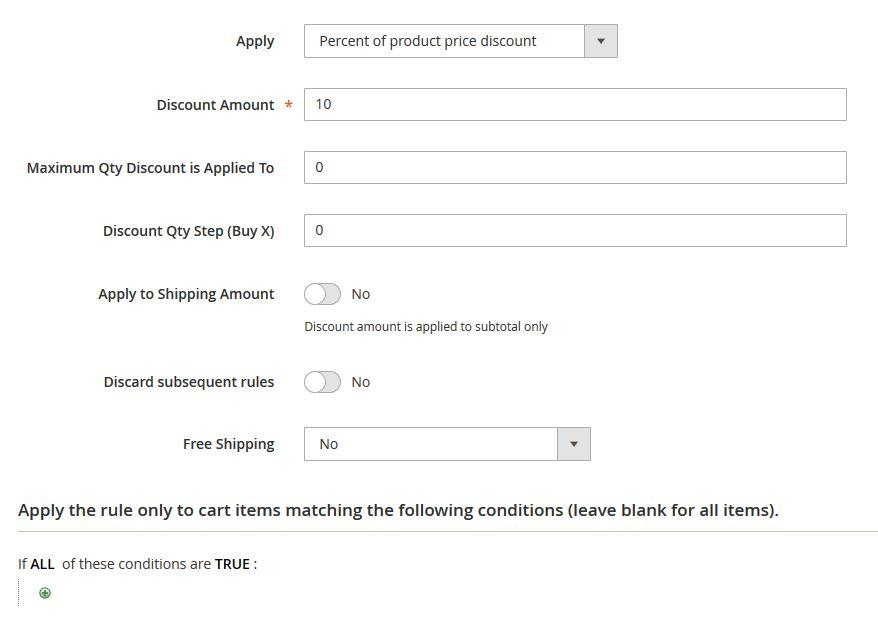
Save it.
Create the "On subtotal of $100-$200 get 25% discount" coupon:
- Rule name: On subtotal of $100-$200 get 25% discount
- Status: Active
- Websites: The websites which you want your coupon to be active in.
- Customer Groups: The customer groups which you want your coupon to be active for.
- Coupon: Specific Coupon
- Coupon Code: subtotal-100-200-25
- Priority: 2
- Conditions:
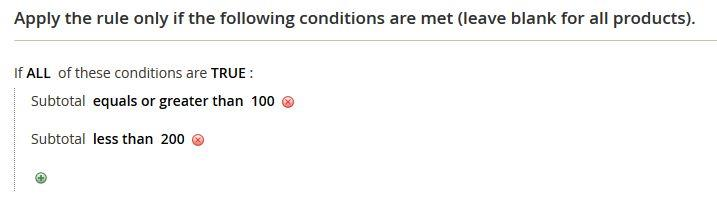
- Actions:
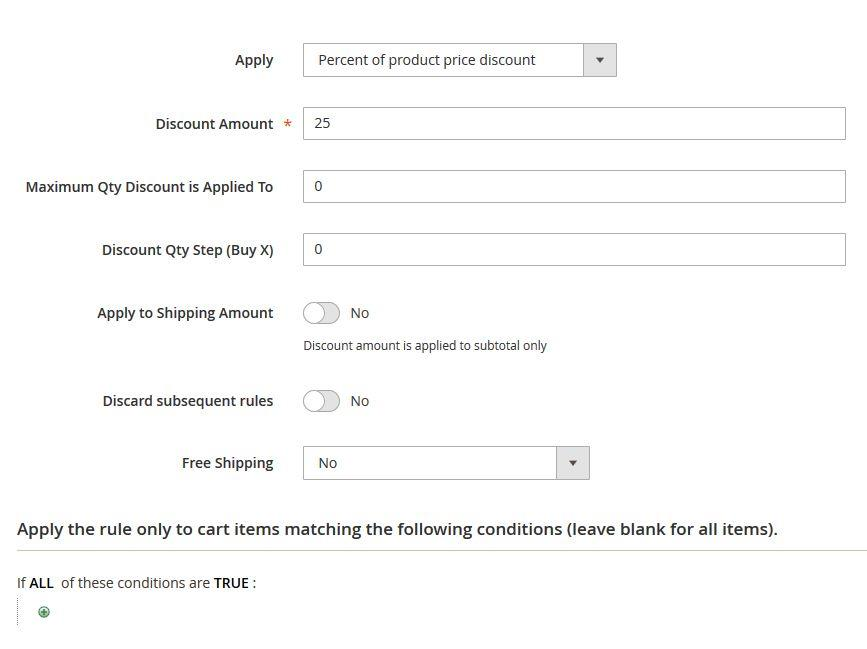
Save it.
Create the "On subtotal of $200 or higher get 30% discount" coupon:
- Rule name: On subtotal of $200 or higher get 30% discount
- Status: Active
- Websites: The websites which you want your coupon to be active in.
- Customer Groups: The customer groups which you want your coupon to be active for.
- Coupon: Specific Coupon
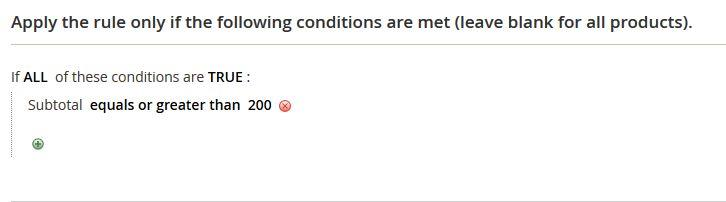
- Coupon Code: subtotal-200-30
- Priority: 1
- Conditions:
- Actions:
Save it.
- The "Rule name" and the "Coupon code" values are not essential. That is, you can give any name/coupon code you want (but not empty ones).
- Priority is the order in which the coupons are applied. That is, once the tiered coupon is applied, it will try to apply those 3 coupons one by one, and the order of the application will be determined by the "Priority" field.
Step 2: Creating the tiered coupon
- Go to Marketing --> Tiered Coupons.
- Click "Add New Tiered Coupon".
- In the top form, fill the following values:
- Name: Crazy Summer Promotion
- Code: crazy-summer
- Active: Yes
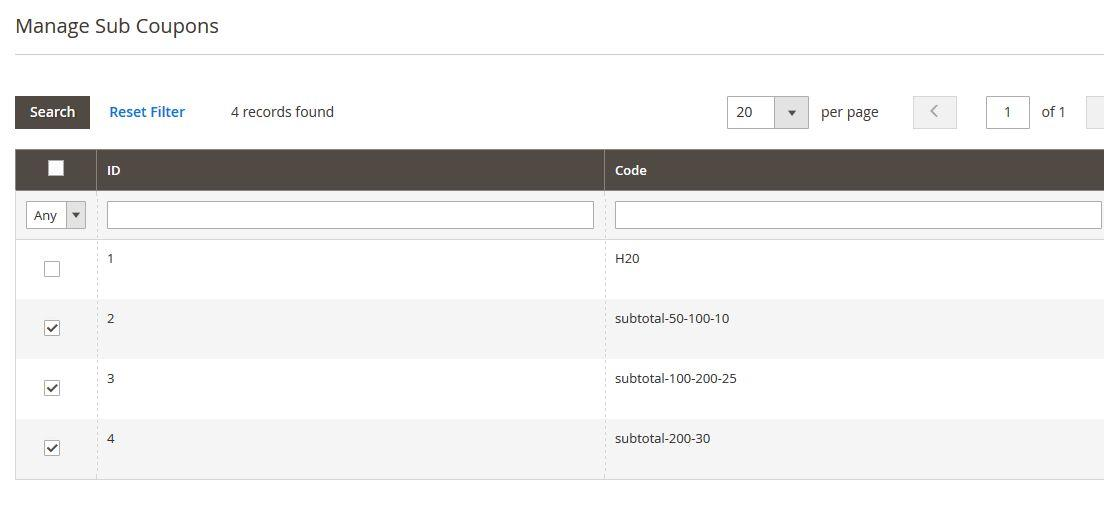
- In the "Manage Sub Coupons" section, choose the 3 previously created coupons:
- Click "Save".
You are done!
The "Name" and the "Code" fields' values are not essential. That is, you can give any name/code you want (but not empty ones). The description field is only for your internal usage and can remain empty.
Step 3: Testing the tiered coupon
To test the newly created tiered coupon, go to the frontend. Add some products to the cart, such that the subtotal will be 50 or higher. Apply the coupon "crazy-summer" in the cart. You should get the correct discount according to your subtotal.
How does it work?
Once the tiered coupon is applied, it tries to apply its children coupons one by one. The order of the application of the children coupons is determined by their "Priority" field. If the child coupon is "Inactive", it won't be applied. If one of the successfully applied children coupons has the field "Discard subsequent rules" (in older Magento versions: "Stop Further Rules Processing") equal to "Yes", the tiered coupon will stop and won’t try to apply the other children coupons.
Inactivating the tiered coupon
You can inactivate the tiered coupon by changing its "Active" field to "No" and saving it.