Custom Cart and Checkout Messages
This feature is only available in Additional Promotions, Bundled Discount and Free Gift extensions.
The extension allows you to set a custom message in the cart rule, which will show up in the cart and the checkout when the rule’s conditions match.
If you are looking for smart messages that show up in cart, according to the cart rule conditions that the customer needs to fullfil in order to get the discount, please refer to the Upsell Cart Hint Messages
Field explanation
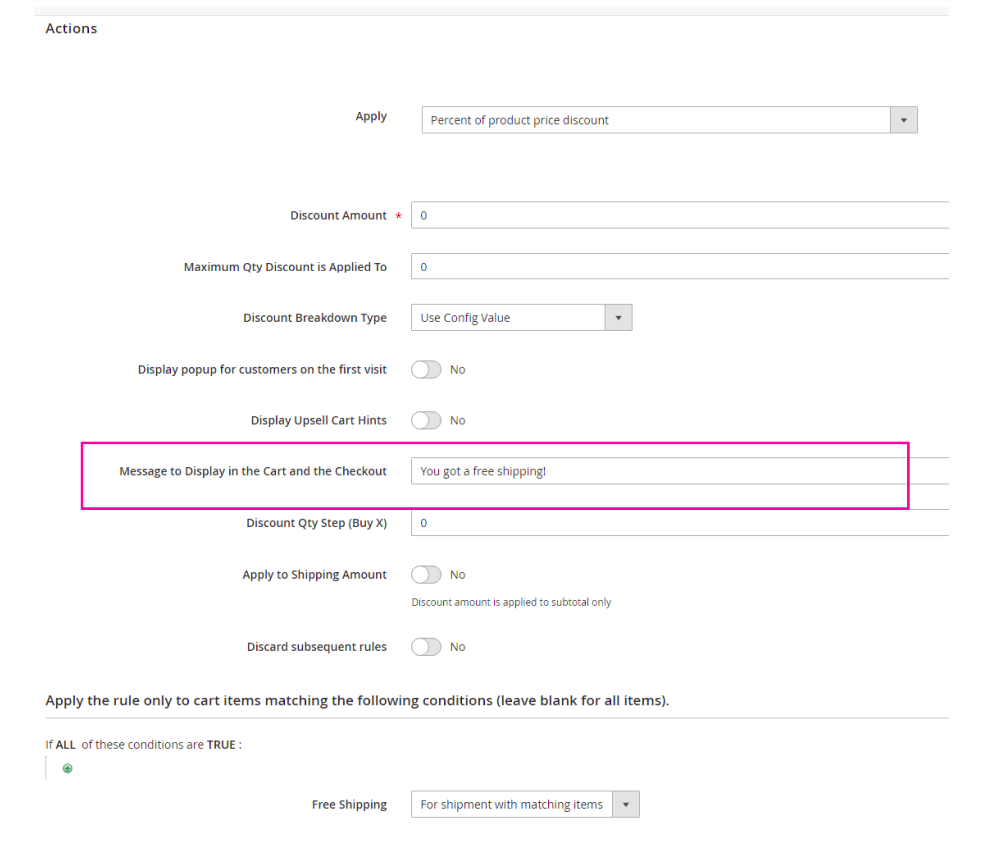
The extension adds a new field to the cart rules “Message to display in the cart and the checkout”. This field is the message that will displayed in the cart and the checkout whenever the cart is matching the rule’s conditions.
Variables in the field
- {{percent-subtotal-n}} – this will be replaced with a n% of the subtotal.
Example
The subtotal is $45, the custom message field has the value “You will get a {{percent-subtotal-10}} offline gift cart added to your order!”. The extension will display the following message in the cart (if the conditions were matched) “You will get a $4.5 offline gift cart added to your order!”
- {{percent-subtotal-with-discount-n}} - this will be replaced with a n% of the subtotal including the discount.
- {{percent-rule-items-row-total-n}} – this will be replaced with the sum of the row total of all items that match the rule’s conditions.
Example
The customer has a bag ($50) and a watch ($100) in the cart. The custom message field has the value “Order our credit cart and get a {{percentrule-items-row-total-n}} cash back!”. The cart rule’s condition is “Product category is “Bags””. The extension will display the following message in the cart (if the conditions were matched) “Order our credit cart and get a $5 cash back!”
Rule #1
Free Shipping on orders above $50
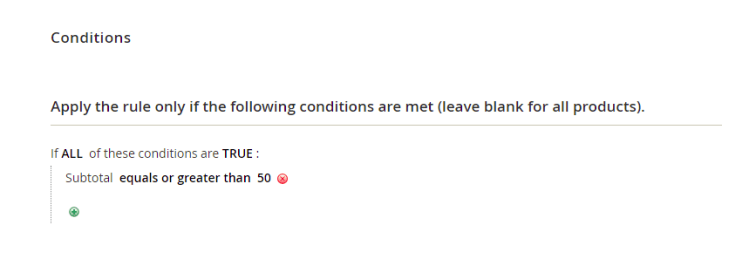
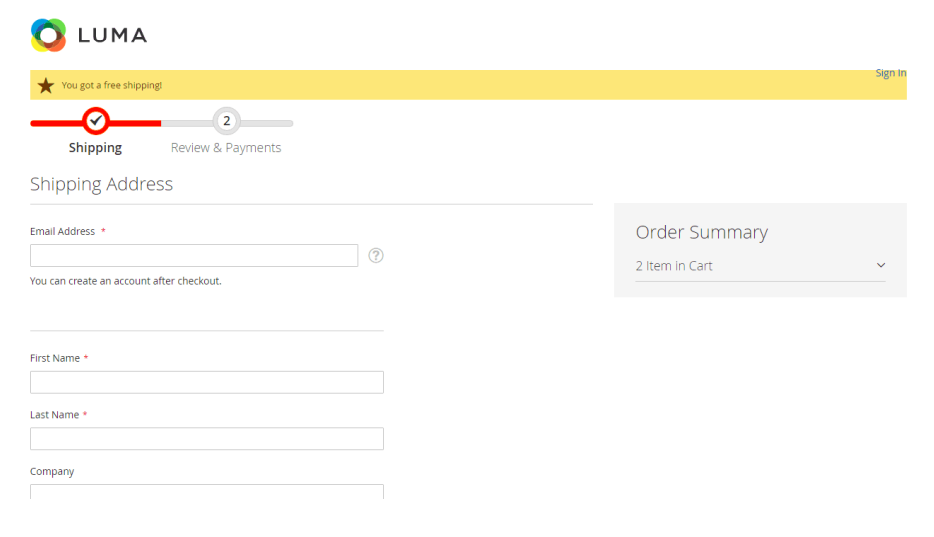
We want to give a free shipping to customers that reached $50 subtotal. We want to display the message “You got a free shipping!” in the cart and the checkout, if the customer’s cart subtotal is greater than $50.
Rule Conditions Tab
Rule Actions Tab
The cart
The customer added $30 worth of items to his cart – there is no message neither in the cart nor in the checkout. The customer added some more items and his cart reached $50, he got the message “You got a free shipping!” in the cart.
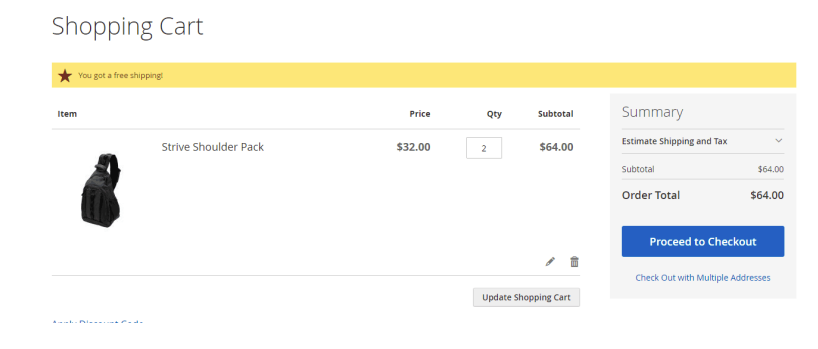
The checkout
Rule #2
Get a 10% cash back for your order with an offline giftcard
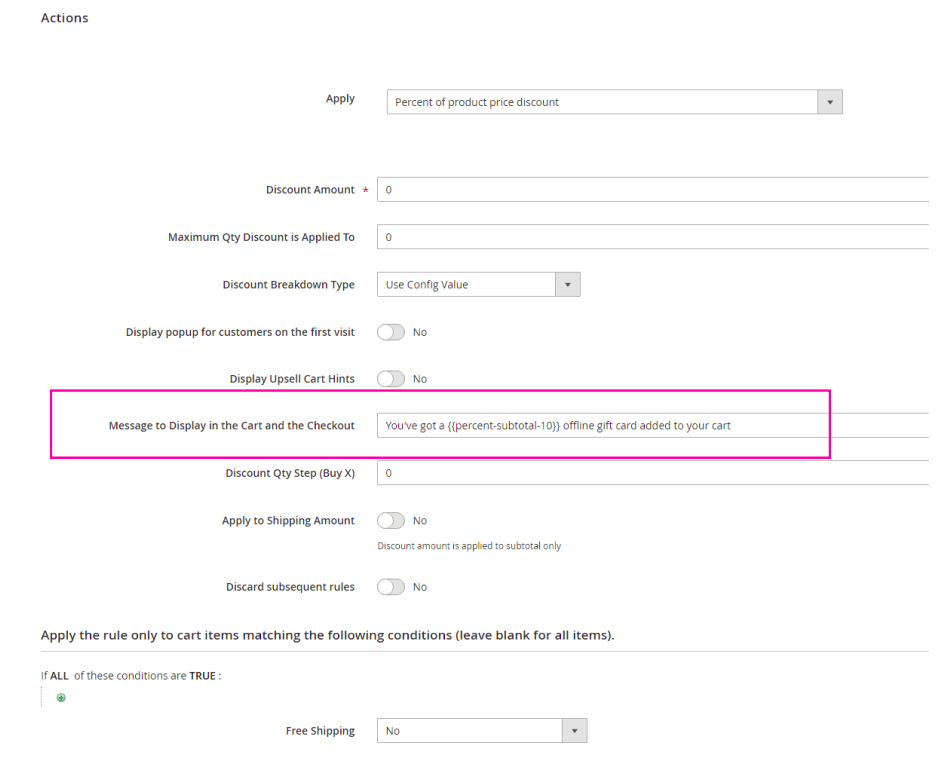
We want to inform the customer that a 10% giftcard will be added to his cart with the purchase. Instead of the 10% we want to display the actual 10% dollar value of the subtotal.
Rule Conditions Tab
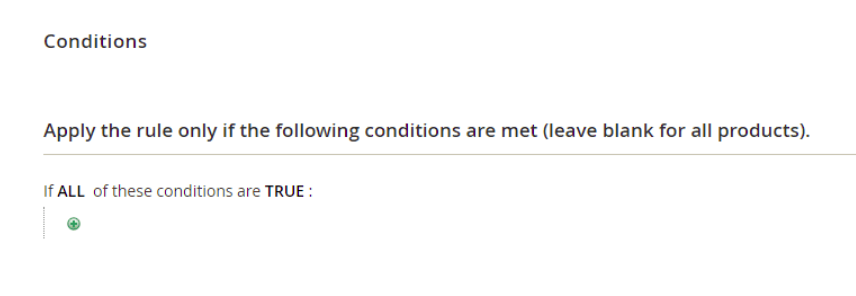
We leave the conditions tab untouched for this rule example.
Rule Actions Tab
The cart
The customer’s subtotal is $45 – the message “You’ve got a $4.5 offline gift card added to your cart” shows up in the cart and the checkout.
Rule #3
We want to inform the customer that the BOGO discount was applied in his cart
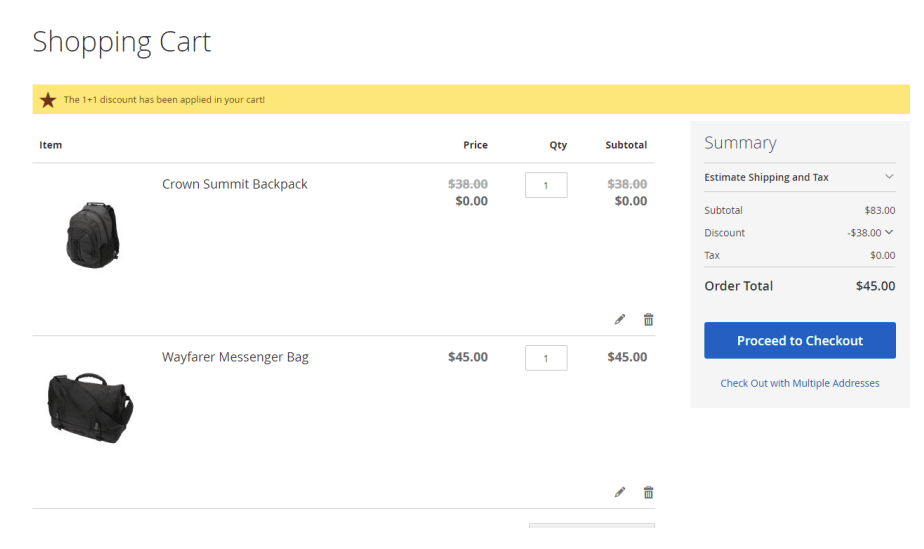
We created a BOGO promotion (1+1 on bags), and we want to make it very clear to the customer that the discount was applied. So we want to display the message “The 1+1 discount has been applied in your cart!” whenever the BOGO discount has been applied.
Rule Conditions Tab
We leave the conditions tab untouched for this rule example.
Rule Actions Tab

The cart
The customer added two bags to his cart. The message “The 1+1 discount has been applied in your cart!” shows up in his cart and the checkout.